


🎮 Capture. Stream. Dominate. Your gameplay, your stage.
The AVerMedia Live Gamer Portable (C875) is a compact, USB 2.0 capture device designed for professional-quality 1080p gameplay recording and streaming. Featuring an onboard H.264 hardware encoder, it offloads processing from your PC, enabling smooth capture with smaller file sizes. It supports direct recording to SD cards without a PC, ultra low latency streaming, and compatibility with major consoles via HDMI and component inputs. Bundled with XSplit and RECentral software, it offers flexible, user-friendly solutions for gamers and streamers seeking reliable, high-definition content creation on the go.




| ASIN | B00B2IZ3B0 |
| AV Output | MPEG-4 |
| Antenna Location | Video Recording |
| Best Sellers Rank | #887 in Internal TV Tuner & Video Capture Cards |
| Brand | AVerMedia |
| Built-In Media | cases, tabs |
| Compatible Devices | Gaming Console, Personal Computer |
| Customer Reviews | 3.9 out of 5 stars 983 Reviews |
| Global Trade Identification Number | 00163121213053, 00795522964175, 04710710676605, 04710710676636, 04710710676698 |
| Hardware Interface | USB 2.0 |
| Item Dimensions | 10 x 7 x 3 inches |
| Item Type Name | AVermedia Technology C875 Live Gamer Portable |
| Item Weight | 3.36 ounces |
| Manufacturer | AVerMedia Technologies, Inc. |
| Mfr Part Number | C875 |
| Minimum System Requirements | USB 2.0 port, compatible operating system (e.g. Windows 8), and a device capable of handling video recording and streaming tasks. |
| Model Name | C875 |
| Model Number | C875GL710 |
| Operating System | Windows 8 |
| Other Special Features of the Product | Direct SD card recording, ultra low latency, time shift, 2-year warranty |
| Platform | Windows 8 |
| Recommended Uses For Product | Video Recording |
| Special Feature | Direct SD card recording, ultra low latency, time shift, 2-year warranty |
| Tuner Type | ATSC |
| UPC | 809392577981 012301017700 795522964175 163121213053 995667370422 132018033562 172302822175 803982743565 151903571378 898029654270 809199904928 168141639531 |
| Unit Count | 1 Count |
| Video Capture Resolution | 1080p |
D**N
Great stand alone recorder. (a few tips for those hoping to use it with an Xbox One)
A lot of other reviews here have said it, but yes this recorder is superb for your basic gaming needs. To put it simply, if you want a device that will basically record almost any HDMI feed (provided it is not copy protected, more on that later), than this is what you want. The device itself does all the encoding, so it takes TONS of load off of your PC and it will even record onto itself using an SD card. A lot of other game capture devices out there piggy-back onto your PC processor to encode and render the video...this device DOES NOT which means it's perfect for people who want to make videos but don't have a computer that's quite powerful enough to record on its own with software without the video quality suffering greatly. It is very easy to use and anyone who is familiar with video recording will not have any troubles. The included software is NOT editing software, just FYI, but rather the software to set up how you want to record and adjust different things about how the device functions. To use this device you will also need, at minimum, the USB cable and an HDMI cable. (both of which are included) The PC Free mode lets you record directly to an SD card rather than to a PC. The capture device still has to have USB power to function, however. The downside to PC Free mode is that the device has to be configured before you use it. In other words, you have to hook it up to your PC, create a profile for PC Free Mode and adjust your settings and such, and THEN it is ready to use. Otherwise it will use a default profile which, for most people is fine, but if you have very specific needs it needs to be pre-configured before you take it with you somewhere else. So far I have used it on both my PC and Xbox One and it works like a champ. Good video quality and very good compression (1 hour of video at 1080p will turn out roughly around 4 gigs or so before editing), and the audio pass-through feature is nice for when your PC/console or whatever is not actually hooked up to an HDMI audio feed and you need the HDMI converted to 3.5mm stereo. The device does NOT have a special mic input, so if you want to record live narration you will have to do it through the computer or console you are using. When the Live Gamer is attached to a computer, you can optionally use a mic to record a separate MP3 file which I would HIGHLY recommend so that you can later adjust the volume levels in another program like Movie Maker or whatever you prefer. Now, for those hoping to use this with an Xbox One, lemme give you a few tips: 1. Make sure the Live Gamer is hooked up as close to the Xbox One as is possible, meaning that there isn't a lot of connections between the Xbox and the device. Plug the Xbox directly into the device if you can. If the HDMI feed is already going through other things like receivers or media splitters before it gets to the Live Gamer you may run into problems with the quality or functionality. 2. Xbox One automatically engages a copy-protection encoding on the HDMI feed if you run any copy-protected feeds on it (like Netflix, your TV box signal, Twitch, Hulu, etc.) Once this copy protection is engaged on your Xbox One it NEVER GOES AWAY until you completely shut down the Xbox and reboot it (hold the power button for 10 seconds until power off, then restart it). If the copy protection is active, the game capture will not work at all. So, do this hard reset to get it work properly and remember that most of the snap apps will engage the copy protect. If all you want to do it record your game, it works beautifully, but if you want to record a game AND a snap app like Netflix or any sort of other media, it will likely block the content.
J**B
One of the best capture cards you can get right now
AVerMedia pulled out all the stops for this USB 2.0 capture card. The LGP is fast and convenient, even working while not actually hooked up to a PC with its SD Card capture mode, with footage recording at up to 16Mbps bitrates - but the SD card MUST be Class 10, and if you want to capture on an actual PC, the bitrate can range from livestream-quality to an impressive 60Mbps for archival-quality footage. This capture card is fast and flexible enough for nearly any user wanting to capture or livestream gameplay. Want a quick setup to record footage on Xbox 360, PS3, Wii U, or PC? SD Card mode makes that about as easy as it can get. Want to livestream console or PC footage? Hook it up to that one PC and stream through the 3 months of free XSplit you get in the box, or from AVerMedia's RECentral (which isn't as robust as XSplit, but it does require less CPU resources). Want to do some crazy two-PC setup where you play your super-demanding PC games on one PC at full speed with zero meddling by other software, and then send output to a second PC that's capturing or livestreaming? Well, the LGP is well-suited to be the cornerstone of a setup like that, too. AVerMedia hasn't released updated software with support for the fantastic recording and streaming program OBS yet, but it's on the way very soon. Capture formats available when using a PC are .TS and .MP4 formats using H264 compression along with AAC audio, at up to 720p 60fps or 1080p 30fps. The HDMI or component passthrough will send the video through from the capture card to your display over HDMI at up to 720p or 1080p at 60fps. (SD Card mode isn't quite as flexible as far as the recording format: just the .TS video format is allowed at a more fixed 4, 8, 12, or 16mbps bitrate - but you *can* get about 8-10 minutes of footage per GB of space on the SD card.) You can use HDMI for your PC, Wii U, or 360, while the Wii and PS3 will require the use of component (yes, gotta use component with PS3 rather than HDMI - that's Sony's fault, not AVerMedia's) and the included cables will allow you to do both recording and pass-through without any additional cable purchases. It should be pointed out that as a USB capture card, there are limitations with the LGP compared to some of the more complex internal/PCIE cards out there. Primarily this is because the capture card itself does H264 compression right on-board and sends the video to the PC in that format, rather than delivering it in an uncompressed format (this is pretty much mandated by the relatively low bandwidth of USB 2.0), so AVerMedia can't interface directly with all software in some generic format. Basically, they have to write in direct support, and right now that means XSplit, their own RECentral, and OBS soon - possibly AmaRecTV as well, from what I'm hearing. I went pretty technical for this review, but through all of this, I think you'll find that the Live Gamer Portable does an excellent job of being as easy to use as you need it, or as technical as the more serious streamers and recorders need it to be. The software set up is very easy, the RECentral application can be run in wizard-type "newbie" mode or in an advanced mode with more options, and the LED and record button directly on the unit let you know at a glance whether you're recording without having to look at the capture program's output. Streaming software like XSplit and OBS (when it does become supported) are more complex, but they have more features so you can build your knowledge of those as you go, if necessary. Overall, AVerMedia is charging a bit of a premium for this product, but because of its flexibility, reliability, and overall quality, you will know where that money went - especially if, like me, you've been disappointed with other capture cards over the last couple of years.
S**N
and AverMedia have tried to compensate by including a nice adapter so that you can use fewer component cables ...
I bought this specifically to stream 2d fighting games on both PC and PS3. If you are thinking of using this for PC or PS3, here are the most important things to consider: PS3: -This is the most important point: HDMI ports on PS3 are copy protected, meaning you cannot just plug an HDMI cable from your PS3 to the AverMedia LGP! If you do, you will get a black screen. This is Sony's fault, not AverMedia's, and AverMedia have tried to compensate by including a nice adapter so that you can use fewer component cables (basically one end has slots for all the component cables, while the other is a single plug, this saves you from having to have a whole set of male/female component cables), but you still have to use component cables to stream from PS3. The only way around using component cables is to buy an HDMI splitter that fails to carry over the copyright protection when it splits. This is almost always a manufacturing defect in the splitter, but there are splitters you can find on Amazon that the comments and reviews confirm will not split the copyright signal and therefore allow you to use HDMI with the AverMedia. I bought one which claimed to work (http://www.amazon.com/gp/product/B004F9LVXC/ref=oh_aui_detailpage_o02_s00?ie=UTF8&psc=1) and as of 2/24/2015, it indeed worked and allowed me to use HDMI. PC: If you are buying this to record PC games without involving a second computer, think hard about whether you really need this. If the AverMedia device encodes for you, you will suffer no framerate loss at all and will be able to play and record with no performance hit; basically you can play as if you were not recording. If the device doesn't encode and forces your PC to handle the encoding, then you will see a huge drop in performance and a lower and inconsistent framerate. The AverMedia will only do the encoding work for you if you use the included (and very limited) AverMedia recorder program, or if you use Xsplit. A trial for Xsplit is included for free, but you will have to pay a yearly fee for it after that. I have not been able to get Xsplit to encode for me, however, though I have seen other people claim it works. If the device itself does not handle the encoding for you, you will suffer a greater FPS loss than if you simply recorded directly with OBS/Fraps/etc. and had no capture card at all. Unless the LGP hardware is handling the encoding for you, it's completely useless and offers no benefit over simply using software screen capture. For my purposes, the very limited proprietary software allows me to record with commentary and suffer no framerate drop or stuttering whatsoever, but I cannot use OBS features like overlays or webcams etc. I also cannot have multiple sources of audio, so it's either commentary track or in-game sound. If I can get Xsplit to work I will update my review, but when I had it run once, it dropped my framerate, so somehow the device was not handling the encoding through Xsplit. Other points that apply to both PS3 and PC: -You can stream or record at 1080p, but only at 30fps. If you want 60fps you have to go down to 720p. Youtube now allows 60fps, so if you are trying to compete with other channels that have 1080p60fps, you will be left behind. For streaming, this is much less likely an issue, because as of 2015 few people have the bandwidth to stream 1080p at 60fps. -The device is super small and portable. Fully hooked up with HDMI, you only are adding 3-5 extra cords to your desk or setup. If you have to use component cables for PS3, expect a lot more cables snaking and tangling all over the place. -The proprietary software does what it needs to, but not much more. For many people this will be totally fine. AverMedia's website has a .exe file that you have to download so that OBS can recognize the device. If you don't use this file, you will see something that looks like the AverMedia device, but it will only show a red screen. You must download the OBS plugin from AverMedia's site to use OBS! -Xstream actually seems really good. If I can get it to encode for me, I will probably consider this a five-star product, but as of now there is no streaming software--either free or paid--that will encode for me and have the same feature set as OBS.
B**E
If this is a top tier game capture product, what garbage is being sold to people?
How in the hell is this thing being seen as a solution to anything? I've been doing Let's Plays for a while, and have been using FRAPS, D3DGear, Lolio and OBS for quite some time. Game recording and capture with commentary I know pretty well, and the problem was I had no means to do so with console games with my current setup. Also, due to the fact that my computer is about 80 feet and up the stairs from the consoles, capture cards didn't really look like they were the solution. But hey, they've got these highly praised capture devices that can do it all! Right? Sweet mother of uselessness, this thing is a piece of trash. Though I suppose it depends on what you want to use it for, I mean ReviewTechUSA used to open all his videos with "this was recorded with the AVerMedia Live Gamer Portable" and indeed, if you want decent looking gameplay recorded for 5-10 minutes and give no s***s about the sound, it can do all that for you no problem. The issues come when you actually expect it to be competent at anything approaching usefulness. I mean, I don't think my let's plays are too demanding. I commentate and play, there's next to no editing done in my videos.. but god damn, after spending hours just trying to get the thing to flippin' work in the first place, I found that you can't record commentary WITHOUT a PC hooked up to it. Kinda kicks the portable part in the ass, so I had to dig up and drag out my busted old laptop to plop next to the tv just to get this "hassle free" thing to have basic functionality. It's fortunate that the RECentral software gives you plenty of options to work with on recording and bitrate/framerate and what have you, because the PC Free Utility refuses to even recognize the capture device. (and yes, it's set to pc mode to try to connect and it still can't find it.) So I can't change the pc free recording mode, but considering I can't record commentary pc free that is like complaining the wild bear didn't finish eating the leg it ripped off me. But still, we have features! Features like being able to record the commentary to an MP3 file instead of the video file, so you can balance the audio later! How fun! If you record your gameplay in 1 minute or less, it might be useful. Here's the thing.. I played a game for 45 minutes, and got a 45 minute video file out of it paired with a 40 minute commentary track. The whole thing was there, but the device is THAT bad at keeping things in sync over even short periods of time. Hell, my facecam for my PC LPs ends up maybe 3 seconds out of sync after 2 hours. 5 minutes in 45? What the hell guys? The audio track wound up completely useless and I used the audio from my facecam, which while still out of sync, was LESS out of sync than the dual-recorded commentary track and easier to edit into the video. So I decided screw it, just merge the commentary and video. I'll record some experimental footage and figure out how to balance it well. I left it at default at first, expecting to have to lower the mic volume because the separate commentary track, while useless, was EXPLOSIVELY LOUD. So I did a quick circuit in Fast Racing Neo, commentating the whole time. Playing it back, I find the game is loud (as usual) but the commentary track is suddenly whisper quiet and I can barely tell it's even there. Not to mention, the thing STOPPED RECORDING after 10 minutes for no apparent reason. Considering where I play is still 5 feet away from the LGP or the laptop, I highly doubt I accidentally pressed the button. So I go into the software, and set the game volume lower while leaving the mic audio the same. (it's set to max at default, so it's not like I can set it louder anyway.) I play for 40 seconds, check the video, and yes the game is quieter. Problem is for some reason now the mic is so low I thought it didn't even record the thing at first, only realizing it did when I heard the audio pick up me messing with putting it on and taking it off. Repeated this, turning the game volume to minimum and leaving the mic volume max. Game is very quiet but still decent for sound quality, while the mic audio is completely absent. I got this thing so I could move on from pointing a camera at the tv to record console game footage, but it's so useless I think that's what I'll have to go back to. Hell, with the random cut-outs in the middle of recording, I'd be crazy not to set up the camera to record the TV just as insurance that I will get the freakin' gameplay I'm trying to. So you want the list of pros and cons? Pros: -Game footage looks nice. -Game sounds clean, audible. Cons: -Can't record commentary without PC or mixing table workaround for PC-Free mode -Commentary recorded on PC to MP3 becomes horribly out of sync in a very short time -Commentary recorded on PC directly to video is barely audible at best -Pretty much means you can't record commentary with this thing, out of the box. -PC-Free utility doesn't work, despite computer clearly recognizing device for the PC recording mode -Cuts out randomly when recording -Included HDMI cable only 1 foot long, severely limiting your range in an entertainment center -USB powered, but very picky about power source. (Wii U USB power not stable enough, causes the thing to glitch out and only record 4 seconds or so. Also, doesn't show error lights when this happens, just the stable recording pulse.) -Wind up needing your PC within 3 feet of your console to actually get the thing recording "with commentary." -All this frustration and more can be yours for about $150! -Feels and works like it belongs in a Dollar Store. So pretty much, if you DON'T do Let's Plays, and you commentate later about other things or are recording footage for review purposes and the like this can be okay. The random cut-outs can screw that up too, but it won't be quite as much of a problem. However, if you do want to use it for let's plays, so many needed features this thing claims to have either don't work or are so broken you're better off spending that money on a cheap HD camera to point at a TV. Game quality will be s*** in comparison, but at least you'll be able to commentate, it'll be synced up, and won't need nearly as many wires and power sources! I have not yet tried the stream engine, and I would assume that works fine and might give the thing some value.. but that's going to require me to move even more things around. What's the point of a portable product when it needs to be just about as close as a PCIe card anyway?
P**P
This is One Amazing Product
Before I start this review, let me just say that I've used other capture cards before, such as the Blackmagic Intensity Shuttle USB 3.0, Blackmagic Intensity Pro, and the Elgato Game Capture HD. The Avermedia is by far, the best one I have used so far. When I first heard about this card I was very interested in this device and I will do my best to explain why. When I received my card on April 29, 2013, I was ready to get down to business and see what the hype was all about for this card. So this is what you get when you buy this card: You get the instruction manual with this product. I didn't need to use it, but it's there for the people that need it. You get a protective bag for your capture card which is real nice. Let's say that you wanted to bring your device with you to show it off to your friends, or if you were going to a tournament and you wanted to bring this device with you and didn't want it to get scratched, the bag will help out a lot. You do get an HDMI cable with this purchase, but the cable is about 5-6 inches. I would recommend buying a longer HDMI cable online since the one you get is way too short, but I guess if you are using a laptop then it isn't so bad. Moving on; the next item that comes with this purchase is a component cable adapter. This adapter is great to have, especially if you are trying to stream Wii games, or if you are trying to record your PS3 gameplay because on the PS3, you can't use HDMI. The PS3 is HDCP protected, so you could either use the component adapter OR you can use this special cable that Avermedia gives you that works for the PS3. The PS3 cable lets you record and stream your footage with no problems what so ever. The next item to talk about is the 3.5mm audio cable. The audio cable is used for your audio coming through the headset. I use a Turtle Beach X12 series and I get sound from my headset just fine when playing my games. This is one of the problems that I had when using the Elgato Game Capture. I couldn't get the audio working to my headset which was a big problem for me. The audio worked fine for the Shuttle and Pro when I had them. Lastly, you get a mini usb cable and this cable is used to connect your card to the computer. Another feature that I want to talk about is the SD card feature. You can record your gameplay on a SD card which is really cool. So if you are one of those people that goes to a lot of tournaments and stuff, all you can record off your SD card instead of your hard drive. I must add that you must have an SD Class 10 card or it will not record. Now let's talk about the capturing and streaming parts for this card. I won't try to go in too deep so bare with me. For capturing, you have a wide variety of video settings that you can from: Video Format: you can either chose TS or MP4. I have been hearing from a lot of people that if you use TS, Sony Vegas will not read it. I don't use SV so I wanted know. Resolution: 360p is the lowest and 1080p is the highest. Video bitrate: ranges from 300kbps to 60000kbps (this is higher then the Elgato since Elgato goes up to 30000kbps) Audio bitrate: ranges from 32kbps to 256kbps Frame rate: ranges from 15 to 60 fps Deinterlace: There is an option for it, but I can't use it as of now. Stream Stabilizer: This option is available if you are streaming. Stable, Balance and Quality are the only three that you can choose from. I personally use Quality and stream looks okay, but isn't the best since Avermedia's device isn't compatible with OBS and Amarectv (not yet). A patch is due on May and the new patch will let users use this card on OBS and on Amarectv. From my experiences, those two programs are the best for streaming and your quality will look beautiful. Used both of these programs when I had my Shuttle and had no pixelation or anything of that nature. When I use Xsplit, that is a different story. Speaking of Xsplit, this purchase also comes with a 3 month premium code for Xsplit users. another thing that I want to talk about real quick is the delay this card has. You can barely notice the delay for this since it's only 300ms of delay. This video shows an example of that: [...] Also, check out my video of me using the Avermedia LGP in action: [...] If you guys or gals have any questions, fill free to ask. My experience with this card so far is one hell of an expereience and I can't wait to see what more they can do with this capture card.
D**A
Great little device, do NOT buy to stream!
Works as advertised. The output files are surprisingly small for the resolution and bitrate being captured and don't show really any visible artifacts. Your YouTube end results will of course depend entirely on your workflow and this device is not going to give you a completely uncompressed original to deal with but it's never really enjoyable to deal with files in the 10's to hundreds of gigabytes in size as an amateur. I wish there was a dual-link dv-i option though. HDMI is a necessity for console users, but dual-link dv-i is superior to HDMI on high end, high gamut monitors. it's quite a tradeoff to drop down to lower contrast HDMI output in order to prevent losing a few frames, however with some games (notably mmo's that are not properly optimized) a capture card is the only way to get smooth recordings without losing massive framerate. I am a registered owner of fraps, bandicam and dxtory but will be using this device for all of my capture needs from here on out. edit: i would stay away from 1080p at 60mbps. there are audio sync issues after 10 minutes that i dont encounter recording at 720p 60mbps Addendum 6/28/2013 This product is just great for local recording, but stay away from it for streaming. Because it's USB based, the output is already encoded unlike the live gamer hd. Using xsplit or OBS you will not get a smooth framerate response whether it be 30fps or 60fps due to this, and the CPU overhead when using AverMedia's own software to decode the signal for streaming programs makes it unuseable. stay AWAY from this product if you want to stream - pc or otherwise. it doesn't matter if you stream on one pc or stream using a 2nd machine, the Live Gamer HD is better for that and will give you higher quality streams.
N**I
not as easy to use as people say...doesn't work for me
so after many months of looking into i finally bought one of these. i used to capture gameplay on for youtube videos using an old hauppauge HD pvr. once all the consoles started going to HDMI only i decided to needed to buy one of these to get back into the video making game and maybe start live streaming. i had bought this system to stream and capture gameplay from the xbox one primarily for killer instinct. i got the system home and hooked everything up, installed the drivers and software, and everything seemed fine. except for the fact that it won't let me record or capture any gameplay because apparently the xbox one has some sort of copy protection. i thought it was the ps4 that did that but apparently the xbox does too. i don't know how these other people are able to do it but i'm guessing you have to buy more s*** and fiddle with way more stuff that i really wanted to. i just wanted a box i could hook up to my macbook air or my desktop pc and be ready roll. not the case here. i feel bad because my boyfriend got it for me as a gift and i'm sitting here not knowing how to get it to work right. so i guess if you're capturing older consoles it may work but i haven't tried it nor did i intend to. i just wanted to capture gameplay of killer instinct on xbox one and its not letting me. you may have better luck than me.
A**Y
Avermedia Live Gamer Portable, an evolution in capture devices
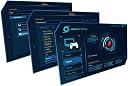
It's an exciting time to become a youtuber or a streamer on things like twitch.tv. whether your just looking to share some awesome in game moments with friends or looking to make a name for yourself in the online gaming community you have to start somewhere, and if a robust selection of gaming devices are included in that somewhere, a capture card is where you probably need to start. So let's get straight to the point, if your looking at capture cards, chances are you wan't to record/stream game footage. The only problem is you have a plethora of devices you want to record off of and only a capture card can do that for you. However you may be a bit daunted at the obscene notion that a portable USB powered capture card can provide the same results as the current line of internal PCI capture cards. I've spent a few weeks with the live gamer portable now and I believe I can alleviate some of those concerns and assure you that this card is capable of everything you expect from a capture card and more, at a form factor just barely larger than an smartphone. Prior to this year almost every capture card solution required an on board PC capture solution, this led to the issue of many smaller gaming tower setups, especially those with dual gpu setups having to make concessions in order to fit a capture card into their computers, quite often that concession was one of their coveted GPU's. In addition, recording footage offsite at a friends house lets say, meant lugging your tower around with you, often in an unceremonious fashion. The live gamer PORTABLE suffers no such drawbacks, like its big brother the Live Gamer HD (C985) the portable has onboard h.264 encoding and compression hardware built into the card. An impressive feat considering the device barely measures larger than a smart phone at .9 thick by 5.2 wide by 2.8 tall, and is USB powered! However In addition to handling everything your normal capture card would, the live gamer portable has the feature which I believe deems it a truly portable device. PC Free mode, a mode which uses any class 10 or higher SD card, and any USB power source to capture your devices like Xbox, PS3, and WiiU without a computer. Be aware however, that without a computer loaded with RECentral hooked up you are not able to record at 1080p resolutions. The caveat being that if you bought another portable device, a laptop, you could still easily record or stream at 1080p. So, Pc free mode is restricted, but only to a still impressive 720p@60fp, especially considering that the device isn't capable of recording 1080p@60fps anyways. In order to make PC free mode even more accessible they have also included a neoprene type case to protect your card, which should be able to hold the device, SD card and mini USB cable. As for the software, RECentral is as user friendly as they come. It has three modes for both capture and streaming. Newbie, Amateur, and Pro which you will select depending on your knowledge of Video sources, formats, and bitrates. Although it is worth saying that each mode provides the same general information. The lower levels just provide a bit more visualization and information for new users to get acquainted. So really recording is as easy as plugging your HDMI or component cables in (Ps3, HD component cables included)the included HDMI cord for HDMI out, and possibly your extra mic for commentary into the audio in (assuming your on console). Press the glowing button in the center of the card to activate RECentral, select your presets, press again and you should be recording. Or if your on PC free mode, slap in your SD card, cables/mic in, and click the button to record at 720p 60fps. In conclusion, the AverMedia Live gamer portable is not a dumbed down Live gamer HD, it is simply an evolution in capture card technology. The live gamer portable is a great device for those who will be capturing content from multiple consoles, and RECentral is user friendly enough for even those with only the most basic know how. This is a precursor of cards to come, portable pass through capture cards with on board encoding. So if your looking into the capture card market and have the coin to pay for the 179.99 MSRP Live gamer portable, it comes highly recommended from this reviewer.
A**D
Super recomendado
Si quieres empezar a grabar tus gameplays o ya tienes algo de experiencia, esta capturadora lo cumple todo y con la mejor calidad. Es facil de aprender a usar y super práctica. La recomiendo ampliamente.
L**5
Una prova a scopo puramente teorico: registrare da decoder Sky. Test superato!
Questa unità Avermedia è davvero un ottimo prodotto, molto comodo e facile da utilizzare. Il software, da scaricare sul sito Avermedia, è ben realizzato e non ha dato nessun problema di riconoscimento e utilizzo. Non vorrei dilungarmi su altri aspetti tecnici già evidenziati da molte recensioni su questo prodotto. L'aspetto che mi incuriosiva provare, data la comprovata difficoltà tecnica, era riuscire a registrare dei contenuti archiviati con MySkyTv nell'hard disk del decoder sKy. Premetto che lo scopo di questa prova è puramente di verifica tecnica e non raccomando di ripeterla perchè (si può essere d'accordo o meno) registrare sul proprio pc i contenuti del decoder Sky è comunque illegale. La verifica che si vuole quindi ottenere è di poter registrare su PC esterno dei programmi pre-registrati su MySkyTv (o anche trasmessi in diretta dal decoder). Il materiale che è stato necessario procurarsi è: 1) AVerMedia Live Gamer Portable C875 (link:https://www.amazon.it/AVerMedia-Live-Gamer-Portable-LGP/dp/B00B2IZ3B0/ref=cm_cr_arp_d_product_top?ie=UTF8) 2) uno splitter hdmi Cablesson Hdelity 1x4 HDMI splitter (link:https://www.amazon.it/gp/product/B00IOVHY5G/ref=oh_aui_detailpage_o06_s00?ie=UTF8&psc=1) 3) ovviamente il decoder Sky 4) due cavi hdmi (uno in più, non strettamente necessario, è presente col decoder) 5) un pc / notebook con porta usb La prima cosa da fare è, sul PC o notebook, scaricare il programma RECentral da gamerzone/avermedia.com (si può cercarlo pure in Google), andare alla sezione Download, selezionare la Serie del Prodotto Avermedia "Gaming", la categoria "Capture e Streaming" e il prodotto "C875". A questo punto si va nella sezione "Applicazioni e Driver" e si scarica il programma RECentral Una volta installato sul PC e aperto, si possono effettuare i collegamenti. I collegamenti da fare sono (vedi foto-video): 1) il cavo hdmi in uscita dal decoder va messo su HDMI input dello splitter 2) sull'output 1 dello splitter collegare un secondo cavo hdmi il cui altro lato va sull'ingresso hdmi dell' AverMedia. Non è necessario, ma se per comodità di vuole vedere l'immagine anche sul tv, va collegato un terzo cavo hdmi dall'uscita hdmi dell'AverMedia all'ingresso hdmi del TV. 3) collegare alimentazione allo splitter e accenderlo 4) collegare il cavo usb in dotazione all'Avermedia dal lato della stessa unità alla porta usb del PC A questo punto va fatto un primo check: nella finestra principale del programma RECentral in alto a destra dovrebbe apparire la scritta di riconoscimento dell'unità Avermedia collegata (AverMedia Live Gamer Portable), se così non fosse provare a scollegare e ricollegare il cavo usb dalla porta del pc, eventualmente cambiando porta se necessario. Una volta che il collegamento è corretto, io consiglierei (ma ognuno poi può fare come vuole) di andare in "Procedura Guidata" e poi selezionare "Console di gioco". Passando per le varie finestre "sorgente video" , "sorgente audio" si può controllare che il segnale arrivi correttamente. Su "impostazioni video" invece si possono cambiare i parametri di registrazione del file, io suggerisco di scegliere mp4 e di lasciare gli altri parametri come stanno. Non è necessario fare altro: basta cliccare sul tasto rosso "Pronto" per arrivare alla schermata di registrazione con al centro il tasto rosso REC.ùQui si dovrebbe vedere e sentire il programma in uscita dal decoder. Quendo si desidera si preme REC e si avvia la registrazione, si stoppa premendo nuovamente REC. Il file viene archiviato nella cartella Video, a schermata principale del programma, cliccare appunto su "Cartella Video" per fare aprire la finestra di File Explorer e vedere i file in lista. L'unità Avermedia devo dire funziona benissimo, è veramente piccola, non scalda affatto ed in teoria ha la possibilità di registrare anche su scheda sd veloce (non ho provato tale caratteristica), in questo caso si salta il programma da pc e si collega il lato usb dell'unità ad un qualsiasi alimentatore usb. Per avviare la registrazione basta poi premere il tasto centrale dell'unità. Lo splitter Cablesson 1x4 v2 (probabilemnte vanno benissimo anche le versioni a meno porte) è davvero realizzato con materiali di grande qualità, è robusto , con la scocca completamente in metallo. Non ha mai dato un piccolo problema e ha la capacità di bipassare la protezione HDCP (ricordando sempre che registrare i video con questa opzione non è legale). Veramente un ottimo prodotto. In definitiva due ottimi prodotti testati sul campo in una condizione tecnica di non facile realizzazione. Sperando di essere stato in qualche modo utile, auguro a tutti una buona visione "legale" .
M**L
Excelente
Buena capturadora para iniciarte en el mundo del gaming
D**Y
Amazing!
This capture card is truly amazing. If you are looking into getting a capture card the Avermedia Live Gamer Portable is the best out there. The Live Gamer Portable is about the size of an iPhone but it records in amazing quality with stunning colours. Also the ability to record in PC free mode with an SD card is super handy and makes the capture card that much more portable. Being new to this capture card experience I didn't know how to set it up at first but it is super easy to set up and start recording and if you need any help, the folks at the Avermedia forums can help out in a flash. In all aspects this capture card dominates all others. Averedia has clearly outdone themselves with this product at this price.
ほ**に
ゲームが録画できる
自分が遊んだゲームを録画したいとずっと思っていました その時にこの商品に出会いました 全く動作も問題なく使え2023年現在も現役で頑張ってくれてます
Trustpilot
2 months ago
3 weeks ago