

Desertcart purchases this item on your behalf and handles shipping, customs, and support to Sri Lanka.
🚀 Elevate your home Wi-Fi game—stay connected, secure, and ahead of the curve!
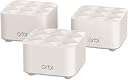
The NETGEAR Orbi RBK13 Mesh WiFi System delivers powerful, seamless coverage up to 4,500 sq. ft. with a single network name, powered by a quad-core processor and AC1200 Wi-Fi speeds up to 1.2 Gbps. Compatible with all internet providers, it features wired Ethernet ports, advanced security via NETGEAR Armor, and easy management through the Orbi app and voice assistants, making it the ultimate router replacement for modern smart homes.


| ASIN | B07WTXG3XW |
| Antenna Location | Gaming, Home |
| Antenna Type | Internal |
| Best Sellers Rank | #5,131 in Computers & Accessories ( See Top 100 in Computers & Accessories ) #128 in Whole Home & Mesh Wi-Fi Systems |
| Brand | NETGEAR |
| Built-In Media | One (1) Orbi Router (RBR10), Two (2) Orbi Satellites (RBS10), One (1) 2m Ethernet cable, Three (3) 12V/1A power adapters, Quick start guide |
| Color | White |
| Compatible Devices | Gaming Console, Smart Television, iPhone |
| Connectivity Protocol | ethernet, wi-fi |
| Connectivity Range | 4500 square_feet |
| Connectivity Technology | Ethernet, Wi-Fi |
| Control Method | App |
| Controller Type | Google Assistant |
| Coverage | 4500 square feet |
| Customer Reviews | 4.3 out of 5 stars 3,373 Reviews |
| Data Transfer Rate | 1.2 gigabits_per_second |
| Frequency | 5 GHz |
| Frequency Band Class | Dual-Band |
| Global Trade Identification Number | 00606449144055 |
| Item Dimensions L x W x H | 8.02"L x 12"W x 5.15"H |
| Item Weight | 2.9 pounds |
| LAN Port Bandwidth | 1 Gbps |
| Manufacturer | Netgear |
| Maximum Upstream Data Transfer Rate | 600 megabits_per_second |
| Mfr Part Number | RBK13-100NAS |
| Model Name | RBK13-100NAS |
| Model Number | RBK13-100NAS |
| Number of Antennas | 2 |
| Number of Items | 1 |
| Number of Packs | 3 |
| Number of Ports | 1 |
| Operating System | Netgear OS |
| Other Special Features of the Product | Guest Mode, Internet Security, LED Indicator, Parental Control |
| Router Firewall Security Level | moderate to high |
| Router Network Type | mesh |
| Security Protocol | Comprehensive anti-virus & data theft protection for your PC, Mac® and mobile devices with NETGEAR Armor™ |
| Special Feature | Guest Mode , Internet Security, LED Indicator, Parental Control |
| UPC | 606449144055 |
| Unit Count | 1 Count |
| Voltage | 100240 volts |
| Warranty Description | 1-year warranty |
| Wi-Fi Generation | Wi-Fi 5 |
| Wireless Communication Standard | 802.11ac |
| Wireless Compability | 802.11ac |
N**L
Impressive value for an entry level mesh router
I got the Orbi RBK13 as a solution for a family member who has experienced frequent problems maintaining a wifi connection throughout their home. They don't have the high end devices or a fast Internet connection so maximum speed was not a concern. They just wanted an economical solution that provided a solid wifi connection throughout their house. This Orbi does just that. Setup was a breeze although I chose to use the router's embedded web interface instead of the Orbi app. Kudos to Netgear for continuing to provide this option even though they don't mention it in the quick setup instructions. Download the owner's manual for all the details. You shouldn't have to install an app to setup your router and with this device, you don't. The satellites were pre-paired so it's as easy as logging into the router, going through the step-by-step setup process, and then turning on the satellites within range of the router. The web interface will show you when everything is connected. I was impressed by the range from the router to the satellites. The furthest satellite connected directly to the router without having to daisy chain through the nearer satellite. There are a couple of features that have caused confusion which has led to some bad reviews. First, during setup you'll be offered to setup Netgear's "Circle" Parental Controls. You have to use the app to do this, but you are not required to enable it if you don't need it. Second, you will be encouraged to activate a free trial of Netgear's "Armor" cyber-security suite. This is an optional free trial for a paid subscription service. If you do not want a comprehensive security suite you can simply decline to activate this service and use your Orbi like any other router. Demerits to Netgear for not making it more clear that you're not required to subscribe to this service. Finally, some users are confused about the nature of this device. By default, Orbi functions as an Internet router and completely replaces your existing router. Install Orbi in place of your router and recycle the old router. It is just as suited to that task as most consumer routers and it adds a very good mesh wifi on top of it. If you already have an advanced router and you want to keep it and add mesh wifi then you can put Orbi on your network behind your router and configure it as just a mesh wifi access point for your home network and Internet. In the Orbi menus, select "Advanced Setup" and then "Router/AP Mode" and select "AP Mode" instead of "Router." Disable the wifi on your existing router to avoid interference and connect to the Orbi access point instead.
A**O
A very good system
We've had this Netgear Orbi Mesh system installed for more than six weeks in a 3200 sq ft, 2 story house. The router module is next to the computer and internet cable modem at one extreme end of the first floor and next to the back wall of the house.. The 1st satellite is in the middle front of the house about 30ft straight line away through 4 walls including a laundry room and kitchen and the related metal appliances. The 2nd satellite is nearly straight above the 1st on the 2nd floor but against the front house wall. After having to work through the install and syncing procedure a few times, the Orbi performs quite well. Wifi strength is greatly improved upstairs where we had very noticeable problems previously. On some devices the signal was almost non-existent. This mesh system now seems to provide as strong a signal upstairs as we previously had downstairs. We are happy. Definitely a good buy. And, to avoid confusion, it appears that the Orbi RBK-13, as advertised, is the same as the Orbi AC-1200. Don't ask why. Interestingly, we did have two instances where one or the other satellite lost it's good connection (status light turned yellow) but that was quickly resolved by re-syncing (pressing the router sync button on the back, then press the sync button on the back of the satellite, and then wait several minutes for the blue light to re-establish. Maybe similarly, we also had two instances of lost power for which the system re-established itself without human help. Great. Humans get worn out. Lastly, tech support did not respond to the only email I sent. Eventually found the answer needed in the manual. The mobile app is ok and since we've so far chosen to keep it simple, we've really not needed it nor the Amour protection they hope to sell you.
T**H
4.5 Year Review - Amazing Mesh Network
I have been running the RBK13 System for 4.5 years at my farm house and it has been awesome. I am able to place the main router and satellites near all of my security cameras and they always get a great signal. The main router is right near the couch so the signal to my laptop is incredible. I cannot say enough good things about this system and ordered another tonight so I will have two extra satellites to place where I now have a need for them.
K**R
Netgear Orbi
To give you context for this review, I am an electrical engineer with 50 year experience with computers and other devices - designing them as well as using them. So... Once I got this up and running it seems to work very well. Definitely better than what I had before. However, getting it up and running was a royal pain. I had to run through their procedure many times to finally get it going. Basically did the same thing every time, following their directions each time. One time it started giving me notices that it had blocked the phone I was using to set it up with due to some malicious attack! Finally I was able to get through all the steps of the setup and have everything work properly - doing the same steps every time. Obviously the setup procedure needs work. Then there is the note in the directions that if one uses the same SSID and password other devices would automatically reconnect. WRONG! While they did try to connect to the same WiFi network I had to reenter the password on each and every device. Finally, don't believe the sped test. It is testing the connectivity speed/quality of the base station through the modem to your ISP. Usually, what you really want is to see what is happening at the device you are using. While my ORBI speed test on the phone app says 250M, my remote devices range anywhere from 45M to 100M - depending on how far each is from one of the base or satellites. I suppose the phone test is useful when determining what your network is capable of with multiple users, but beware if you think you will get that number anywhere in the house. Of course, as noted above, these speeds are much better than what I had with my previous router so I am not complaining about that - only that the app test can be misleading and the initial setup was a nightmare. I would have given this five stars if it had my experience was what the ad copy promised. The WiFi access lived up to that promise, but the other issues brought the rating down to a four.
B**N
Easy to install, works super well
I had seen reviews saying the install was difficult or that you were forced to subscribe to some dumb security service or something. Luckily none of that was true. Installation was a breeze, took me about 20 min to get all three units going. And most of that time is just waiting for the devices to initialize and connect to each other. Installation was as follows: 1. Open box, see two satellite units, 1 router unit. (they are labeled as such with a temporary wrapper, but also are permanently labeled on the bottom). 2. Plug ethernet cord from my current (internet provider provided) router/modem combo into the new router unit. Then plug it in for electricity. 3. Wait for the light on the front to cycle through flashing and turn solid blue. 4. Plug in the two satellite units (to electricity) and let them do their thing until their lights are solid blue (I did this with them all just sitting next to each other in the same room). 5. On my phone, connect to the wifi network they are broadcasting (the network ssid and password at written on the bottom of the router unit). 6. Open browser on phone and go to the address listed on the installation card that came in the box. 7. The website suggests that I download and install their phone app, I declined to do so. Maybe that is where they try to sell you on some security package? 8. Follow the steps on the page to set up the devices (setting your admin password etc). 9. Then actually log into the router (in your browser, on your phone, same address as before... use the password you just set.) 10. To make things easy I chose to name my network the exact name of my old network. So first I also logged into my old router and switched off both wifi networks it was broadcasting (2.4 and 5 ghz). And then on the new router I set up the wifi network with the same name and password. Note: If you name the new wifi network something new, or give it a different password, then of course you're going to have to update every device in your house that you want to connect to it to provide it with the new name and password. 11. I had to wait a couple of minutes for all devices in my house to come on line (like 50 things), but they all connected just fine. 12. Now everywhere in my house I have full strength wifi signal.
D**E
Setup for Access Point mode poorly documented. confusing, and not working
Quick summary: Pretty disappointed. I purchased the product to act as a range extender for my AT&T Uverse modem/router, which Netgear claimed to be able to do in “access point” configuration. The actual setup instructions didn’t work, and the tech support was non-existent. I wouldn’t recommend this product for anyone without significant network experience, certainly not for a soccer mom, or even a DNA researcher. Not because it didn’t work (I eventually got it to work), but because the setup proceedure was vague, and incorrect leading to a tedius diagnostic process. Details below… I purchased this model because it was inexpensive, and allegedly suited my needs, which were to improve signal quality from my router (at one end of the house, as determined by where my TV is) to my home office, at the other end of the house, a floor up. I didn’t want a second network, or to change my network name (SSID for the cognoscenti) or password, which would have caused me to reset networking on multiple workstations, laptops, and printers. I would guess that this is one of two main reasons for purchasing this network mesh systems (the other being clean installs of a completely new network/computer system). I had also watched multiple third party Youtube video’s which gave the basics of how this system is supposed to be installed. The message is that in installing an Access Point configuration is different from a “router” configuration…because you have to deal with, in this case, ATT equipment. Basically, you have to turn off the ATT radio, and configure the Netgear equipment in “Access Point” mode. According to Netgear web additional info re Access Point configuration (Web page entitled “How do I set up my NETGEAR of Orbi router to work with AT&T U-vers?”) on the internet you have to: 1. Use a smart cell phone to use their setup wizard 2. Turn of the att radio by accessing internet address 192.168.1.254, then change settings in ATT’s router setup page, using a computer “connected to the network”. [What they really meant here was “hardwired via internet cable” to the network—there’s a big difference]. Step 2 has a lot of issues. First, since all the computers in my house are radio linked, turning off the radios immediately makes all computers unable to communicate with the internet, and thus unable to finish the setup—and unable to turn the radio’s back on. I was able to address the ATT web page, but the terms NETGEAR used didn’t actually exactly match the terms on the ATT page, so it was a little unclear what to turn off (the terms LAN and Wireless didn’t appear on ATT’s page in the order NETGEAR mentioned. The proper sequence was Settings, Lan, Wi-fi [not wireless])., Also, ATT demands an “Access code”, not either “user name” or “password” as NETGEAR’s documentation references). It would have been helpful if NETGEAR had pictures of ATT’s successive web pages and exactly what settings to change [do you turn off “guest”, too?] In words, the proper thing to change would be designated by “Under ‘User Network’, change ‘Enable’ to ‘Disable’. Ultimately I did turn off the radio’s, thinking that there would be some provision for the NETGEAR radio’s to take over. Wrong. Ultimately I realized that I must get a laptop with Ethernet port, and connect it with an additional Ethernet cable to the ATT equipment. THAT didn’t initially work because the laptop Ethernet had to be configured to use DHCP [dynamic addressing], which required going into the laptop’s Ethernet configuration menu, and changing the IPv4 mode to DHCP. This, then allowed me to access the internet, do do the next step 3. Access a website called Orbilogin.net to set the orbi device to Access Point mode. I was never able to access this address. I consulted another Netgear web page, which addresses the problem of what to do if I couldn’t access the page. They offered about 8 alternatives, all of which I tried, and none of which worked . Their last option was to reset the Orbi, and try the whole process again. Apparently, this isn’t a new problem. [I did, in the earlier setup, rename my Orbi router with my previous name and password. It is possible this somehow disabled Orbi’s ability to deal with my Orbi network—and made impossible to even get a web page at Orbilogin.net. I don’t know. But Orbi’s menu’s did offer me that alternative. Not being able to change the Orbi to Access Point mode, I was ready to give up. I looked for support. They had a phone number that didn’t work. Helpfully, they did prominently display an offer for support for a fee. OMDB. At this point, the internet wifi wasn’t working so I decided to return to my previous, pre NETGEAR configuration. The first step in this process was to (using the Ethernet cable from my laptop) reconfigure the ATT page to turn on the transmitters. Amazingly, this made the network work with much higher performance than my previous system, even though the NETGEAR hadn’t been configured to Access Point. It should have resulted in conflicting radios from the systems, which I’d imagine would make things not work. I suspect that the system is configured wrong, but since I’m only demanding 35Mbps (all that ATT provides here), it is possible that any conflict is being papered over. Bottom line: the system now works, but not without a LOT of hassle, mostly due to incorrect documentation, absent web sites, and unusable support. You definitely need a laptop with Ethernet port properly configured, an extra Ethernet cable, a smart phone, some network knowledge, and willingness to stick your fingers in normally untouchable parts of your computer settings.
M**S
Works perfectly
Very easy and following the instruction, the setup was as expected. Now enjoying fast wifi thru the whole house. Recommended
A**O
It works and priced right.
I bought the Orbi mesh WiFi device to use it overseas in Ethiopia. The product description indicates the device adaptor can use 100 to 240VAC source; however, this wrong. The power supply adptor I received clearly shows that it can only take 110VAC and the adaptor output is 12VDC and 0.5 amp. I had to find 220VAC to 12VDC adptors to use with the Orbi router and the two satellite Orobi devices. Because of complaints by other reviewers, I did not want to use the Netgear app for configuring the Orbi device; therefore I did not install the Netgear app on my phone. I did not want to download and install the Netgear security software, either. Existing router is a D-Link device which combines DSL modem, WiFi, router, and switch. The problem was that the D-Link WiFi signal is very weak and I wanted a second second WiFi network. That is where they Orbi mesh WiFi device comes in. Keep in mind the Orbi router itself combines functionalities of router, WiFi, and a switch. I connected the Ethernet cable (came with Orbi package) to the D-Link Ethernet port and on Orbi router, to the Ethernet port labeled as "Internet". Powered the Orbi router. After few seconds, on my Android phone, I was able to see the WiFi named ORBI26. I connected my Android phone to the ORBI26 WiFi using a password shown on the label affixed to the side of the Orbi router. In my case, the password was "classycurtain078". Next, I opened the Chrome web browser on my phone and entered www.orbilogin.net. This took me to the Orbi configuration page. First, I tried to configure using the setup wizard, but it failed reporting that there is no Internet connection. Then, I selected manual setup and setup a new username and password for the Orbi configuration page. Note that this is separate from the WiFi ID and password. In the WiFi configuration tab, Next, I changed the WiFi ID and password.
M**H
K. S. A
المنتج مقبول. يفصل بشكل دائم للنقاط البعيدة.
A**R
Most likely will NEVER buy another Netgear product
The product started out good for the first year or so.. but after the warranty period ended nothing but trouble. the product keeps asking to reset the password to remote in to see wifi status via the app constantly dropping.. I had to create a backup SSID on my main router due to this dropping issue (what's the point of doing this when you have a Mesh!!!! :( ) overall experience is not good... Going to try one of these others - Dlink, TP-Link or Linksys... buyer beware......
C**S
i bought 2 Cameras from u one is not working
Why is this item taking so long is it cause that its out stock
Trustpilot
1 day ago
5 days ago