๐ฏ Master your devices with one remote โ because multitasking just got stylish.
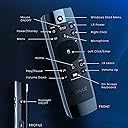
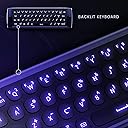
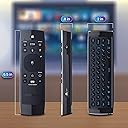
The Azulle Lynk Multifunctional Remote Control is a compact, wireless 5-in-1 device combining a full Windows keyboard, mouse, remote control, swivel wheel, and microphone. Featuring 6-axis motion sensing and universal compatibility across PCs, gaming consoles, and smart TVs, it offers backlit keys for low-light use and integrated speech recognition for seamless voice commands and chats.


| ASIN | B01N1PD7BG |
| Additional Features | Backlit, Universal |
| Battery Type | Alkaline |
| Brand | AZULLE |
| Built-In Media | 1 Lynk Multifunctional remote control, user manual, and a customer service card |
| Button Quantity | 10 |
| Color | Black |
| Compatible Devices | PC, Android, XBox One, PS4, Linux, Mac |
| Connectivity Technology | USB |
| Controller Type | Button Control |
| Customer Reviews | 3.6 out of 5 stars 266 Reviews |
| Global Trade Identification Number | 00853685006351 |
| Item Type Name | Azulle A-1068-AL Lynk Multifunctional Remote Control, Backlit QWERTY, Wireless Mouse, AI Learn Buttons, Black |
| Item Weight | 0.2 Pounds |
| Manufacturer | Quantum Suppliers |
| Max Number of Supported Devices | 1 |
| Maximum Number of Supported Devices | 1 |
| Maximum Range | 10 Meters |
| Mfr Part Number | A-1068-AL |
| Model Name | Lynk Multifunctional Remote Control |
| Model Number | A-1068-AL |
| Special Feature | Backlit, Universal |
| UPC | 853685006351 |
| Warranty Description | Azulleโs brands and its products are owned and operated by Azulle. To honor this limited warranty, you must present a valid, proof of purchase of the product. This warranty is void if the company deems, in its discretion, that the product may have been damaged through modification, improper use, end user negligence, water damage, or tampering of the bar code of the product unit. If the product hasโฆ |
J**R
Well Built, Solid Remote
This remote is well built with the exception of the battery door latch. On my unit the latch must be manually moved into the locked position. It is designed to snap into the locked position but lacks the tension to move into locked position with batteries installed. This is a minor point, but when you first use it be prepared to pick up the batteries until you figure out the latch. It feels solid in your hand, does not feel cheep. The keys on the reverse side are stiff and require an affirmative push to register the entry. This seems like a minor issue until you use a program without a spell checker (KODI, search function). You may be making your entries twice... or you will find yourself slowing down during keyboard entries to look up to confirm the entry was registered. The air mouse function is really cool. although sometimes you will need to "center up" the cursor. I just run the cursor to the side of the screen and keep moving the remote. This explanation may be difficult to visualize but once you use the air mouse and you find your self reaching to to odd angles to control the cursor, you will immediately know what I mean. I have not used the AI or voice functions yet but I have heard from credible sources that they are cool. Tech support from Azulle is good. I had to use support not for the remote but for the Byte Plus which I like (that issue turned out to be a windows issue not a hardware issue). I have compared the Lynk next to a Rii. Results of the side by side test: the Rii is collecting dust on a shelf.
M**H
Works well with the Nvidia Shield though a little pricey
I posted this review on the XDA Developers website, so you may see some references to other remotes that were discussed earlier in that thread. That thread is dedicated to reviewing third party remote controls with Voice Control that may work with the Nvidia Shield media box. If you are interested in reading that thread please search for "Third Party Remotes with Voice Control" on the XDA Developers website. Review below: 1. Functionality - most everything works; all buttons on the front of the remote work with the Shield except for the menu, keyboard and Home buttons (a easy fix is possible for the Home button, more on that later) 2. Range - I get good functionality with this remote sitting back about 10' on my couch from the Shield 3. Voice Control - works well. The "Mic" button acts as a mic on/off button. You will need to hold the button to turn the mic on. Releasing the button turns the mic off. The "Windows" button turns on Google Assistant. The mic has decent sensitivity. The mic pics up your voice volume well if you hold it about a foot away from your face. Sensitivity not as good as the Q5, RC02F and G10, but not bad. I tested this using a voice recorder app which shows sound levels when testing. 4. Air mouse - has a on/off button (the "Mouse on/off" button). You need to press it to turn it on, but pressing any of the Navigation keys automatically turns the air mouse off and returns the remote to normal status (i.e. you cannot use both at the same time). All buttons (except for the Navigation keys) continue to function while in air mouse mode. The responsiveness is as good as any other air mouse that I have used @ 10'. Air mouse seems to be more responsive the further back you are. 5. Button placement - is okay. The buttons are spread well across the remote and as mentioned above, almost all work with the Shield. Since they are raised from the remote's bezel, they are easy to find when "searching." It would have been nice if the mic button was larger (like on the Q5) and colored to separate it from the other buttons. I would have liked to see the Home Button and the Back button (or "Mouse Right Click" button) next to each other. I like how the back light button is located on the side of the remote but would rather it have been located on both the left and right side of the remote (I'm left handed so this would have made the remote ambidextrous). I also would have liked to see number buttons available on the keyboard side rather than Function buttons (which are useless for the Shield). 6. Using the buttons - the buttons do make a slight clicky sound (not as loud as the AirFly) when pressing and there's a LED light that shows up every time you press a button which is good for visual feedback. The keyboard works better than the AirFly, but as some video reviews indicate you do need to press down firmly on each key to get it to register. Therefore, this remote would be unpleasant to type with for extended periods (as most remote keyboards are). 7. Form/Ergonomics it's smaller than the AirFly, but larger than the Q5/RC02F. It's rectangular in shape and chunky (which I like). It has good weight/heft to it. It feels good in the hand and I can get to all the buttons rather easily. Keyboard buttons are spaced apart appropriately for typing. From an ergonomics standpoint, I think this is my favorite remote. Due to the heft, this remote seems to be built well. I also think this is the highest build quality remote that I have used. 8. Home Button - as mentioned above, the Home button does not work out of the box with the Shield. To get the Home button to work, I downloaded the "Button Mapper" app onto the Shield using the Aptoide Store app. You can then select "Add New Button", press the "Home" button on the remote and then customize it for single press (which I choose the "Home" command) and double press (I choose "Recent Apps"). Contrary to what was noted above, you can open the Recent Apps menu on the Shield by double clicking the Home button if you use the Button Mapper app to program this button. You do not need to have the Button Mapper app on after programming it. In fact, I have completely shut down the Shield and restarted it and the remote has still retained the learning of the Home button. 9 . IR Learning - all keys can be learned. A video discussing how to "teach" this remote other remote commands is found on YT (search for "Azulle Lynk - How to switch between IR remote control and 2.4GHZ air mouse"). Unlike the instructions noted in the video, I only needed to press the TV remote key just once when teaching the remote to learn. Using the instructions noted in the video mentioned above, I programmed in the TV's power button (assigned to the A. I Power Button) and the TV's volume keys without issue. Like other remotes, you will need to press a button to switch the remote from RF mode to IR mode (on this remote it's the "A. I. Learn" button) which when done will turn off all RF commands for the remote. It would have been nice if the LED light on the remote turned a different color when the remote was in IR mode vs. RF mode. 10. Back light functionality - Works well. All buttons show up uniformly. Pressing the back lite button will only turn on one side of the remote (whichever you have facing you). Doing so will keep the back light on for about 10 seconds. I would have liked the lumens to be a little higher for the back light (since the remote's keys light up a soft blue color), but for the most part I am happy with it's back light capability and the ease to turn it on and off.. 11. Price & Availability - is decent. You can get this remote shipped (in the US) for $30 and have it in about a week directly from Azulle (via this amazon). At the time of this review, Amazon also has refurb Azulle remotes available ATM for $8 (which I bought). When I received the refurb it looked brand new with cellophane wrap still covering the packaging box. Due to it's availability on Amazon (at least in the States), the availability for this remote is high, but due to its price (if you pay full retail) it is one of the more expensive remotes I have tested (check out the azulle tech webpage). Moreover, this remote seems to be made by a reputable company (unlike many of the other remotes which are fly-by Chinese companies that rebrand remotes over and over again). Finally, due to the quality of the manufacturer, there is a high probability that you will get good customer service and warranty support if you ever need it. Take home message - I think for the price (which I paid $8 shipped), this is my favorite remote. I love the size, heft, thickness and build quality. Buttons are spread nicely apart. It does everything the AirFly remote does but doesn't have the button clutter. The air mouse responsiveness is good. My small grips regarding this remote would include: 1. The Voice Control button doesn't automatically call up Google Assistant (like the Q5 and RC02F) 2. Would have liked the buttons to be more responsive (especially the keyboard) and clicky (the Q5 does this very well) 3. The Home button does not work out of the box with the Shield (which can be easily remedied) 4. There are no number buttons on the keyboard (which I think is a big oversight) 5. You cannot access the Power Menu by long pressing the Power button. ATM I'm not sure how to get to the Power Menu using this remote, but since I rarely use the Power Menu its not a deal killer that I can't access it). If a refurb is not available and you need to spend a full $30 for this remote, I'd still probably suggest it (which incidentally is the price of a replacement Shield remote). The build quality and the fact that it has a back light and IR keys sets it apart from many other third party Shield remotes that are on the market at this point. Because of this, I'd probably rate this as my #1 third party remote for the Shield ATM.
C**N
Take my warning. As attractive as the product seems...don't waste your money!
I had really high hopes for this product. It seemed like it was going to meet my needs perfectly. However, it's a bust in several ways, and now I'm beyond frustrated with the product. I received the first one, and it had two main problemsโฆ It would send commands when no buttons were being pressed at all and the mouse function did not work properly. I sent it back to the company (at my expense). They said it would be tested, and they'd get back to me. I allowed time for that, and they came back saying the unit was indeed defective and sent me out a new one. I can confirm that this one works great with both of those problems. It does not send any commands when buttons are not pressed and the mouse works great! BUT, I canโt get the AI Power button to program at all with this one (which did work with the first one). I am trying to set it to turn my soundbar on. Ever since I bought my current TV, the soundbar will turn itself off after a certain period of no sound. So, I regularly have to turn it back on. This is the main reason I need the IR functionality. But, the button wonโt work. I press the AI Learn button for 3 seconds. The LED does blink slowly. I press the button I want to program (the AI Power button), and the light blinks quickly. I then press the button on my other remote that turns the soundbar on/off. The light immediately switches to blinking slowly. I then press the AI Learn button again. But, when I press the AI Power buttonโฆno matter how many times I press it, how close I am to the soundbar, or anything as far as I can tell, it wonโt function. The whole thing is so very frustrating because: a) I really wanted to like and use the product and b) once I sent it back again, it will have cost me half the price of the device in return fees. So, needless to say, I am beyond aggravated with the whole thing now. :/ I held back making a review/rating out of consideration to them on the matter...trying to give them every chance to get a working unit to me. But, they have not replied to the email I sent to them after receiving the second unit. That email was sent on 3/18. It's now 4/16. So, I am done with it, and here you have it...
R**O
Looks Good and Feels Good. But Falls Far Short Of Greatness.
So I've been connecting a PC to a TV or large monitor and using some sort of media center software for over a decade. Consequently I've been searching for the perfect remote control for at least as long. I've gone through a lot of keyboards, mice, and remote controls and I always seem to come back a cheap, peanut shape Adesso branded Windows Media Center remote that I might have cost me maybe $8. I was really excited about this Azulle Lynk remote because it seemed to have all the ingredients for a perfect remote: a simple handheld remote control, a full qwerty keyboard, and it's backlit for use in a darkened room. Hello movie night! While the remote itself is a little boxier than I would like, it mostly feels good in the hand and the soft, rubbery buttons feel good on my fingers. The backlighting is soft and pleasant purple (for the remote) and blue (for the keyboard) light. While the Lynx has plenty of great sounding features like the ability to switch between radio and IR technologies, AI learning, voice control, and a handy dedicated Windows key, one glaring omission stands out. It has no dedicated back button. For me, this single button is far more useful than all these other features and really hurts this gadgets usability. It doesn't totally cripple it however as I can just flip over the remote and use the Backspace key on the keyboard. But this also make using the device more awkward. You open a folder, select your video, it ends, and now what do you do? On a remote with a dedicated back button, you just press the back button to get out of the folder. On the Lynk, you would need to flip the remote over, rotate the keyboard 90 degrees in your hand, press the Backspace key, and decide whether or not to flip the keyboard over to get to the remote or continue navigating with the keyboard. As for the keyboard itself. Having it is a good idea but the implementation is disappointing. While the keys feel good, they are not very responsive, making typing something of a chore even by tiny keyboard standards. As a result, instead of replacing both my remote and my tiny keyboard, the Lynk has instead joined them as yet another option sitting on my nightstand, occasionally being used but not nearly as often as my regular decade old remote. While this review might seem more negative than positive, this remote is very close being what I've always wanted. Add a dedicated back button to the remote control, improve the keyboard. And maybe make the corners rounder for comfort. That would make this gadget perfect. As it is however it feels like a swing and a miss.
A**R
I like the Lynk controller because it makes it easier to ...
I like the Lynk controller because it makes it easier to control my television. I had 3 to 4 remotes at any given time, so having 1 is convenient. The lynk is a airmouse which reminds me of my Wii remote, fun to use when playing games. I can turn over the remote and use the keyboard to type in the name of the movie or check my emails. What I also really like about the lynk is the lighting for the keys, so if Iโm watching a movie in the dark, I donโt have to put on the lights or use my cell phone light. My wife uses the Lynk when she speaks to her family on Skypeโฆthe lynk has a mic, so sheโs able to chat with her mom. My son uses my lynk for his computer..the instructions say it can work with Windows, Linux and Android. I have not tested it with Linux but it does work greatly with Windows, Android and also my daughters Mac Ios.
U**X
Disappointed by IR-mode and D-pad disabling mouse
So disappointed in this air mouse IR learning remote! On paper, it looked absolutely perfect to work with my home theater PC (Win 10), with its dedicated Windows button (I have the start screen setup to act like the main menu of the HTPC) and its IR teachable plus & minus buttons (something most other air mouse IR remotes don't have). PROS: 1) Nice, comfortable size. 2) Decent qwerty keyboard layout. 3) Buttons have a nice tactile feel, satisfying *click*, and the backlight shines through nicely without being too bright. 4) Windows button. I love the inclusion of a dedicated Windows button. Since I use this on my Win10 HTPC, and my start screen is used as the PC's main menu, it's nice to have this function. CONS: 1) My biggest complaint about this air mouse is that, the moment you click any of the directional buttons on the mouse side, it disables the mouse function and requires you to click the "Mouse on/off" button to re-enable it. This wouldn't be SO bad (though still undesirable) if the "Mouse on/off" button was easier to click, but you have to stretch your thumb and reposition your hand just for one button you shouldn't need to press as often as you do... Since I use this air mouse on my HTPC, I routinely use it on the Netflix and other sites/apps that are not optimized for remotes, where you can scroll up and down with the directional buttons but still need a mouse to scroll through each row and to make a selection. So, with my previous air mouse, I was able to scroll down the page with the up/down buttons while remaining in mouse-on mode so I could easily move the mouse and make a selection, too. But with this air mouse, the moment you begin scrolling with the up/down buttons, the mouse function is disabled and must be turned back on before you can make a selection. 2) The way this remote handles IR commands is with an IR-Mode, separate from normal computer remote mode. While I can understand and appreciate the attempt to retain every IR-programmed button's original function for the computer, this functionality just makes it more cumbersome and confusing to use. I was very excited to find a remote where the +/- buttons (for volume) could be taught IR commands. On my previous air remote, I could only map IR commands to 4 nondescript color buttons, and the volume buttons were reserved for computer volume. I don't know how everyone else uses their HTPC, but I prefer to have my PC volume always at 100% and adjust the volume with my AV receiver. And if I absolutely NEED to adjust the PC volume, it's an air mouse, so I can click the volume icon and adjust it that way. So I taught the Azulle air mouse my receiver's volume codes, but was quickly disappointed when I realize that I have to SWITCH to IR-Mode. I can't just change the volume on the fly. If I try to do that, it adjusts the computer's volume, which I don't care about. I have to press an additional IR-Mode button to adjust the receiver volume, then the IR-Mode button again to switch back to using it as a computer remote. This might be nice, even preferable, for some who want to be able to control their PC volume AND their receiver volume with one remote, but it's just overly cumbersome for me and confusing and unintuitive for anyone else to tries to use it with my HTPC. 3) Button location & on-screen keyboard button. First, let's address the "on-screen keyboard" button. What's the point? That's the beauty of using an air mouse with a full qwerty keyboard on the backside, you don't need cumbersome, unintuitive input methods like the on-screen keyboard, just flip the remote over and there's a full keyboard! This button could have been much better utilized with another more useful function... Now the button locations. The remote layout is not ergonomically designed at all. Mainly because the "Mouse on/off" button (as discussed above) is so hard to reach for how often it is needed. The Windows button is also quite a stretch, but that's only needed when changing activities on the computer, so it's not that big a deal. But perhaps the on-screen keyboard button could be replaced by an easier to reach mouse on/off or Windows button. 4) Unused, functionless button. The "Menu" button, on the left just above the directional buttons, at least in Windows, appears to have no function at all. I can't figure out anything that it does. On an Android box, I would hope that it would bring up the menu of whatever app you're using at the time, but I haven't tested this. It seems strange to have a button completely unused by Windows when the remote has a dedicated Windows button at the very top, suggesting it should work fully with Windows. 5) Backwards keyboard (at least for right-handed me). When I'm using the remote as a mouse & remote and switch to the keyboard, it makes ergonomic sense to me to just rotate my wrist to flip it over then slide my hand to the right and grab the left edge with my left hand. But if I do that, the keyboard is upside down. I think that if a left handed person was using this, it would actually work nicely for them. So if you're left handed and tired of right-handed keyboard remotes, this might be the one for you, if you can see past all the other cons I've listed above.
K**M
Works like a Charm
I cannot sing this things praise enough. I bought 6 other "remotes" of this exact make up. Keyboard on one side, remote on the other. They all said they had "ir learning". Not a single one of them worked with both the IR learning and worked with the 2.4 rf. The others are crude knock offs of this one. The manuals were all in terrible translations from Chinese. This one is in perfect English, and full color. So its very easy to understand and program, basically push 3 buttons and boom its done. Do not hesitate to buy this thing. Don't buy the other imitations. This one is cheap enough to be worth every penny. I use it to control my Window Air Conditioner, my Tv, and Fire TV (the Pendant one, I think its the 4k model).
A**R
Easy to use with a pc stick
Great remote to use to navigate your pc stick. The buttons may feel hard to press, but overall I like the lit keyboard (works well while in dark). While this can serve as a full keyboard, most may find this insufficient to use for everyday computing needs like typing a full Word document. I think while one can use it to type and navigate(in replacement of a mouse) through a pc stick, if you want the functionality and convenience of a full regular keyboard this may not be it for you. Nonetheless, there's still a bit of learning curve as one gets used to the tiny keys and combination keys that one need to know to accomplish several tasks. One side serves as a keyboard while the opposite side serves as the mouse. To use the mouse one needs to point the remote to your TV.
C**N
Muy bueno
Muy practico
C**Y
Fjncional
Funcional
Trustpilot
2 weeks ago
2 months ago