Desertcart purchases this item on your behalf and handles shipping, customs, and support to Sri Lanka.
🚀 Elevate your home network to warp speed and total coverage—because buffering is so last decade!
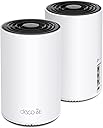
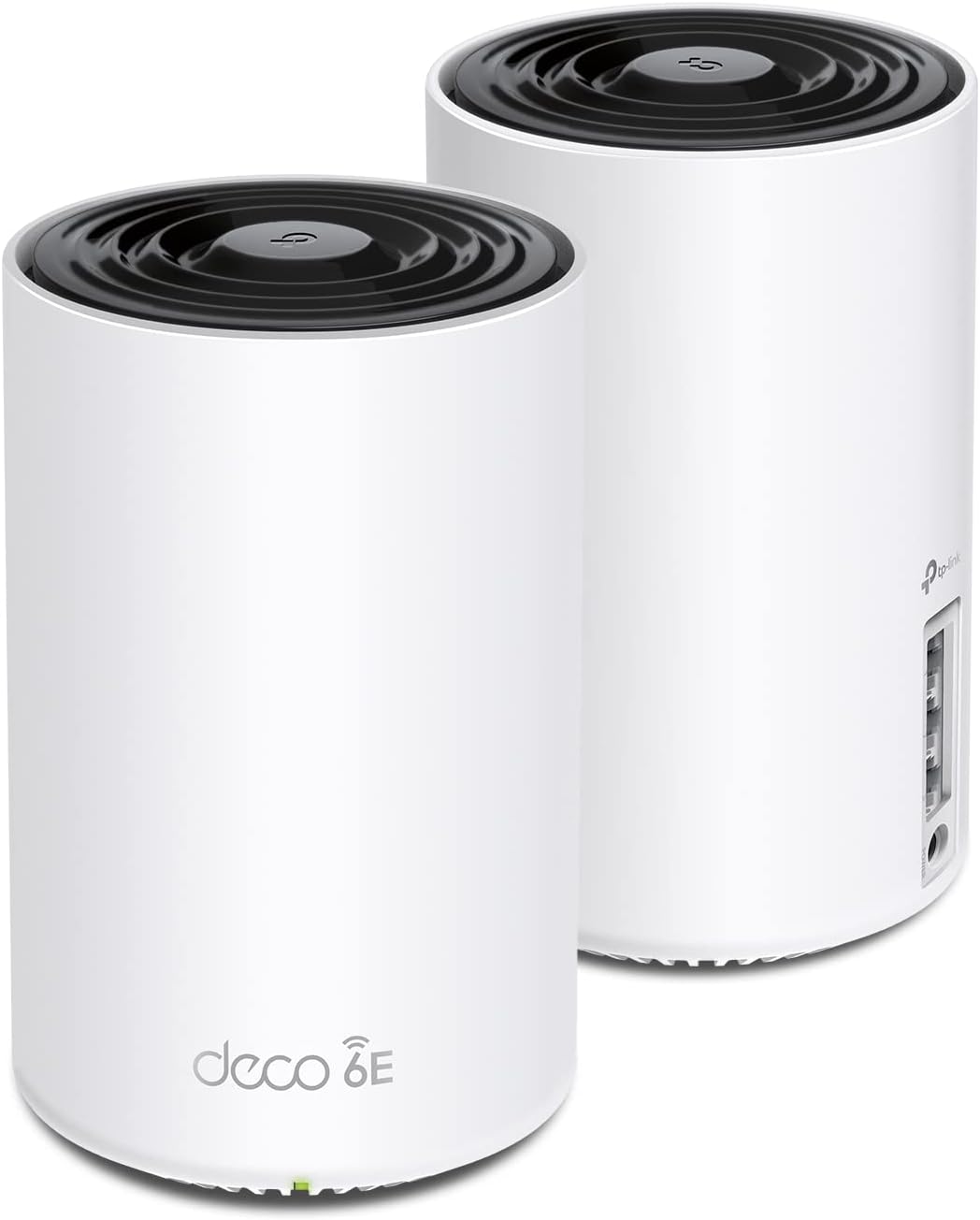
The TP-Link Deco XE75 AXE5400 is a cutting-edge WiFi 6E tri-band mesh system designed to replace traditional routers and extenders. Covering up to 5500 sq.ft, it delivers combined speeds up to 5400 Mbps across 6GHz, 5GHz, and 2.4GHz bands. Featuring AI-driven mesh technology, it ensures seamless connectivity and smart network optimization. The system supports up to 200 devices, offers robust cybersecurity with TP-Link HomeShield, and is easily managed via a user-friendly app with Alexa compatibility. Ideal for tech-savvy professionals seeking future-proof, high-performance home WiFi.


| ASIN | B09VW5JHPH |
| Antenna Location | Gaming |
| Antenna Type | Internal |
| Best Sellers Rank | #15 in Computers & Accessories ( See Top 100 in Computers & Accessories ) #4 in Whole Home & Mesh Wi-Fi Systems |
| Brand | TP-Link |
| Built-In Media | 1 x Quick Installation Guide, 1 x RJ45 Ethernet cable, 2 x Deco XE75 units, 2 x Power adapters |
| Color | Black and White |
| Compatible Devices | Personal Computer |
| Connectivity Protocol | Wi-Fi |
| Connectivity Range | 5500 square_feet |
| Connectivity Technology | Ethernet, Wi-Fi |
| Control Method | App |
| Controller Type | App Control |
| Coverage | 5500 square feet |
| Customer Reviews | 4.4 out of 5 stars 4,853 Reviews |
| Data Transfer Rate | 5400 megabits_per_second |
| Frequency | 6 GHz |
| Frequency Band Class | Tri-Band |
| Global Trade Identification Number | 00840030707131 |
| Item Dimensions L x W x H | 4.13"L x 4.13"W x 6.67"H |
| Item Type Name | WiFi 6E Mesh |
| Item Weight | 2.7 pounds |
| LAN Port Bandwidth | 10/100/1000 Mbps |
| Manufacturer | TP-Link |
| Maximum Upstream Data Transfer Rate | 2402 megabits_per_second |
| Mfr Part Number | Deco XE75(2-pack) |
| Model Name | Deco XE75(2-pack) |
| Model Number | Deco XE75(2-pack) |
| Number of Antennas | 3 |
| Number of Items | 1 |
| Number of Packs | 2 |
| Number of Ports | 6 |
| Operating System | Linux 4.4.60 |
| Other Special Features of the Product | Alexa Compatible, Guest Mode, Internet Security, Access Point Mode, Beamforming, Parental Control, QoS |
| RAM Memory Installed | 512 MB |
| Security Protocol | WPA-Personal, WPA2-Personal, WPA3-Personal |
| Special Feature | Alexa Compatible, Guest Mode, Internet Security, Access Point Mode, Beamforming, Parental Control, QoS Special Feature Alexa Compatible, Guest Mode, Internet Security, Access Point Mode, Beamforming, Parental Control, QoS See more |
| UPC | 840030707131 |
| Unit Count | 1 Count |
| Warranty Description | 2 year manufacturer |
| Wi-Fi Generation | WiFi 6E |
| Wireless Communication Standard | 802.11ac, 802.11ax, 802.11b, 802.11g, 802.11n |
| Wireless Compability | 802.11ac, 802.11ax, 802.11b, 802.11g, 802.11n |
L**I
Game Changer
EDIT: I did find out later that all of the internal settings for the pods are on the phone app, and yes, you can use 6g for clients to connect, but for my needs setting the second pod to being a dedicated backhaul got the best speeds. You will need to use an ethernet cable from the pod to your computer to get these speeds. Bottom line, problem solved! My problem was a video game called Diablo 4. The game requires a fast connection with minimal latency or it starts to lag. When I got D4, I noticed horrible lagging and asked to get my money back, but since I had played 2+hours they wouldn't refund me. Then I checked my network and discovered why I was lagging so bad. The fastest connection speed I could get was about 200mbs wireless which is not ideal for gaming. I tried upgrading to a traditional 6G router with a 6g wi-fi card, but the card would only work under windows 11, and when I upgraded to windows 11, it didn't work. The next thing I tried was to get another wi-fi adapter which did work, and I could finally see the 6G network and connect to it, but the speed was horribly slow, not even usable after that. I'm just too far from the router. I thought a lot about what might be going wrong and how I might fix it. After doing some research I found out that there were these things called mesh units which were all supposed to use 6G to connect to each other and cover the whole house with a strong 6G signal. I decided to give it a try. Well, the results were a bit mixed but I am plenty happy I got these. The mixed part is that you cannot make a 6G wireless connection directly to these mesh devices. You are still using the 5g/2.4g for the actual device connection. The 6G band is reserved for transmitting data from one pod to another, and it works better than I thought. Way better. I set up the second pod in my room and it still didn't resolve the speed issue, and then I discovered the real beauty of these pods: You can run an ethernet cable from any of the pods to your devices. I hooked up an ethernet cable to my pod and the other end to my computer and BINGO! My speeds went from the low 200s up to almost 900mbps and averaging around 600mbps. In other words the pods more than TRIPLED my speed on the same existing ISP network. The real trick here it to place your computer near enough to the pod to use the ethernet port on the back of the pod. I think they call it backloading and it works! Finally, I was a bit annoyed that you had to download and install an app and set up a cloud account to set up the pods, but the instructions were easy to follow and the whole setup was painless. Goodbye traditional router and goodbye wireless adapter! The only downside here is that you don't have any manual control over the internal working of the pods. There's no log in page or webpage to go to for management like a traditional router, but in my case, they whole thing worked right out of the box. All of the necessary settings are in the phone app, which brings up my last point: You WILL need a smart phone to set these up. There's no alternate option. Watching those line speeds triple was worth the price. I now have the fastest internet I can get in my home short of pulling out drywall and laying ethernet connections to every room.
B**Z
Solid upgrade from older Nest Mesh WiFi
I've had the Deco XE75 for a few weeks now and wanted to wait to write a review. Overall I've been very impressed with units and the performance we've been getting. We have 1 gb fiber from AT&T coming into our house. The majority of the house is wired with Cat6 but my son's gaming machine and my daughters laptop as well as all the phones are on WiFi so we need speed from both the hard wired and WiFi side of the router. First off on the wired side, with the Nest I was getting upper 700s to lower 800s for speed direct from the wall. With the XE75 I'm seeing 930+ up and down. A noticeable improvement when uploading to my website or downloading large files like games. On the wifi side is where we really noticed an upgrade. With the Nest we were getting upper 300s to lower 400s for speed and now we're seeing high 800s to sometimes even 900 at the computers and phones. Much higher than I expected via WiFi. I had considered hard wiring the kids rooms but with these speeds there is no need. We are all on the latest generation of iPhone so are able to take advantage of the 6 GHz channel. Very impressed with speed all around. System setup was very easy and I used the same SSID for both the 2.4/5 GHz and 6 GHz channels. Our older devices like our Wyze cams and the Ring doorbell connected easily which can be an issue with some routers. As far as stability, we did have a couple of hiccups the first few days as I was playing with a few settings but the system has stabilized now and we have had no dropouts or disconnects or even any hiccups. I admit I was a little worried in the first few days as I was fighting some speed issues and stability issues but those have not returned. The app itself is a little lacking in features. It has the basics but the one that I miss the most from the Nest app is being able to speed test the bandwidth getting to the router itself. That is a feature I would like them to add. Other than that you can do most of the things you'd want to do with a router in checking which unit individual devices are connected to and set some basics like parental controls and limiting router hopping for items like a desktop that aren't moving. Overall this was a very worthwhile upgrade and I have been very happy the system. Hoping we continue to have good luck going forward and everyone is very much appreciating the upgrade in speed. It's also nice to be getting all the network speed that I'm paying for. Especially on our main wired home entertainment unit and our work PCs as we both work from home.
M**E
One of the very best mesh routers you can buy
I am a techno-geek. Have degrees in electronic engineering and in computer science (networking). Have been working in the computer and telecommunications fields for the past 45 years. Way before Al Gore even invented the internet. I have a ranch style house with full basement; approximately 3,000 sq feet + 2 car attached garage. I normally have 2 routers active; main router for all ethernet connected devices as well as providing VPN connection (Linksys WRT3200ACM); which also connects to the 2nd wireless router a netgear R7000 for my normal open WIFI for non VPN traffic and guests. Both routers are in the downstairs, centered, and work good. The VPN router/WIFI covers the areas of the house for fixed/PC/Laptop that use VPN; but the netgear providing clear WIFI couldn't cover the entire house with a usable signal; even though the R7000 is a very good high end wireless router. It covered MOST of the house, but none to the garage and very little outside front or back; and a couple of sketchy places in the house. I tried wifi extenders and even another router as an access point. Problem with those are there is no smooth transition when walking around with a cell phone, tablet, taking laptop out on the back deck, and other mobile scenarios. Great if you're going to a spot and staying there; but extenders and AP are not good if you're moving around. So, I went with a Mesh system; the TP-Link AXE5400 XE75. This has been awesome. Setup is easy, just follow the app instructions. I left my primary Linksys VPN router as is, and simply removed the Netgear R7000 and replaced it with the TP-Link. (Yes, double NAT is fine for 99% of traffic; IF the primary router, in my case the linksys, is set up properly to allow traffic flow to the TP-LINK to work properly). Anyway; the main TP-LINK router is where the netgear was, and I wireless connect the second slave node on the main floor. This is working great. My VPN linksys wired/wireless router still covers the 2 home offices that use the vpn; and most of the house for the other rare vpn occasions. The new TP-Link XE75, between the downstairs node and the main floor node, are covering every inch of the house, garage, back yard, and front yard. And being I gave it the SAME SSID name and password that the Netgear USED TO BE, I didn't have to change any settings in ANY of my wifi devices. Not even security cameras, Roku, AppleTV, phones, tablets, laptops, etc... All the devices were instant connections. And when I roam around the house, yard, deck, etc... the portable devices like phones and tablets transfer from the one node to the other node seamlessly. I was considering getting a 3rd node, but after using this for the last month, there's no reason to spend more money. This is the best setup I could have wanted. Definitely buy it if you need PORTABLE WIFI COVERAGE for phones, tablets, etc... that move around a lot. If your devices are pretty well fixed and don't move, like streaming tv boxes, smart tv, laptop/computer in an office, etc. then learn to better position your existing wifi router for better coverage or look into using an extender. Extenders are great if you're staying in one place; because it's shows a different SSID than the main and your device can't auto switch between them. But for fixed devices or scenarios where you stay put for long periods of time, extenders are great. Especially for the cost of the TP-Link. I got it on sale, but an extender is still much cheaper. But if you need the mesh technology so you can be more mobile with uninterrupted connections, then this is the mesh wifi for you.
A**R
Good system for general consumer mesh. Missing more advanced features.
2026 Aug 23 update: At long last, the Deco XE75 got support for the WireGuard VPN protocol (client and server)! Some of the other things I commented on that I found disappointing have yet to be implemented, such as encrypted DNS and VLAN segmentation. To be fair, adding VLAN functionality might be a tall order, but TP-Link should still be clearer about what the separate networks are for those who know the difference. Fortunately, TP-Link does seem to be thinking about adding encrypted DNS, because this already appeared in early release firmware for related Deco models. Why it isn't an option yet for the Deco XE75 is a very fair question to ask, though (especially considering implementing that seems much less involved than adding support for WireGuard VPN client and server functionality). In any case, here's hoping encrypted DNS will come to this model soon. But for those who really wanted WireGuard support, you now have it with the 1.5.0 firmware release. If the things I mentioned in this update mean nothing to you, then that simply means the Deco system may meet all your needs and more, and I would encourage you to read my original review to see if that helps you make your decision. Original review: Overall, I think TP-Link did a good job with this system. Good, but not exemplary. Everything is easy to set up and manage, and you can control and customize things to a significant extent. Its general WiFi performance is also excellent. It's like they heard from consumers who liked the concept of mesh, but disliked how many systems offering mesh offer only limited configuration. Now, for those looking for all the configuration options of a "traditional" router, you might be disappointed. This doesn't reach that level. And I have some complaints here myself (more on that in a bit). But it does a lot more than many other consumer mesh systems. For those with very limited technical knowledge, this may not be the system for you, but don't be too quick to decide it's beyond what you can handle. Although I have advanced knowledge in networks and technology, I think this system is extremely well laid out and easy to use for a wide range of user personas. In other words, to be clear, I think it's probably highly usable by all folks, especially with the ready availability of quality tutorials on networking in general and of this system specifically. For those wanting more detail about what you can do, read on. And for those with less technical expertise, fear not! If you read something in this list and think "I have no idea what that is", that's okay. Although this system allows deeper configuration than many other consumer mesh systems, it also supports basic configuration as well (e.g., Don't know what backhaul is? You don't have to!). Okay, now for details - WiFi options: You can have a main network, an IoT (Internet of Things) network, and a guest network, all of which can broadcast both 5 and 2.4 GHz or one or the other. The main network and guest network can also broadcast 6 GHz, which can have a separate SSID. You can do ethernet backhaul (which is what I did) or the 6 GHz can be used for dedicated backhaul. If you can do backhaul, it is almost always a great performance boost. But if you can't, it isn't the end of the world by any means. That's part of why mesh systems were developed, after all. A major nitpick from me regarding their IoT network: This is literally just a separate SSID. It is not a VLAN or VLAN aware (in contrast, the guest network is, so that's nice). I think it's problematic that TP-Link doesn't make that clearer (or, better yet, make the IoT network function like most would expect when they hear it has a separate IoT network). I realize you can only expect so much from a consumer mesh system. That's fine. But then don't advertise a separate IoT network without being abundantly clear you mean it supports a separate SSID that isn't VLAN capable. Device/client handling: You can monitor devices joining your networks via real-time alerts on the app, and you can view the network status (and devices on the network) on demand. You can give devices custom names (and the system is pretty good, though not perfect, at detecting names of devices that have been set outside the app). You can also prioritize or block devices. You can also force devices to connect only to a specific WiFi point in the mesh system and/or only to the 5 or 2.4 GHz band (or the 6 GHz band, for devices capable of using 6 GHz). Interface: Your only real option is the Deco app. The app is done rather well, but it sometimes lags behind real-time status. And not having a typical browser-based interface seems odd (and, for me, annoying). It's almost like they spent so much time on the app (and it shows!) that when they finished, they realized they hadn't done anything for a web-based UI but had no time left and had to move to other competing priorities. VPN server and client: The app also makes it relatively painless to set up connection to a VPN client, which can be system wide or for one or more devices in the network. It also facilitates setting up a VPN server to which client devices can connect (e.g., connecting your laptop to your home network while traveling). This is also an area of criticism from me, though: The UI for VPN server and client is sometimes very sluggish. Furthermore, this system still only supports OpenVPN protocols for both the VPN client and VPN server side of things. Some other Deco models support other protocols (e.g., WireGuard), but I wrote to TP-Link about this more than once, and they keep saying they are working on it but cannot say if or when support for other protocols will be available. This seems like a substantial miss for a newer model like this. And the vague response (plus seeing this has apparently been asked about by others for quite some time) makes me genuinely wonder if it will ever come. Other advanced configuration: I consider this another missed opportunity, unfortunately. Although there are several options for additional advanced configurations (so, a tip of the hat there), this system only offers legacy DNS. If you want something like DNS over HTTPS (DOH) or DNS over TLS (DOT), this isn't supported (again, I wrote TP-Link, and they gave the same noncommittal answer here as they did for the VPN protocol). Parental control: It gives you a healthy collection of parental controls, including the option to create profiles, add devices to the profiles, and apply those profile rules to any devices in the profile. This includes things like blocking access to the network on demand or every day at a set time and blocking specific websites and/or content. There's more I didn't cover here (still for free), and then if you want to subscribe to a paid tier, they open up even more functionality (I don't find this especially compelling, but everybody's different, so you might find this attractive and pursue that). Router mode or access point (AP) mode: I started with this system in router mode, but I eventually transitioned to AP mode for some of the aforementioned reasons (running additional hardware in front of them to get that added control and functionality). I can report that this system performs well in both router and AP mode (though you lose some options in AP mode, such as real-time alerts about unknown/new clients joining your network, VPN server or client functionality, and parental control, which is understandable given the differences in expectation for an access point vs. a router). In summary, as far as consumer mesh systems go, this is one of the better ones out there for sure. But for the "prosumer" type or person who wants deeper control, this may not be for you. I'm currently in the process of transitioning away from Deco for these reasons and to consolidate my setup. But it's a shame, because this system has a lot going for it, and with not too much additional work, it could go from a good general consumer mesh system to a standout leader in the domain (including for consumers who want the deeper control/are more in the "prosumer" bucket). To each their own, however, and I suspect a large number of people (many or even most, perhaps) may be very pleased with running this system in router mode. If so, great! But you at least have the option for AP mode as well. Given the above (perhaps especially my comment that I'm transitioning away from Deco), why four stars? Well, I tried to review this through the lens of reasonable expectations for a consumer mesh system, hence docking it one star (e.g., instead of docking two stars, which seems possibly overly punitive within that framework). But that's also why I titled my review the way I did, in an effort to make the context of my four-star review clear. Whatever your use case or desires might be, I hope this helps you make a decision if this system is right for you.
M**T
Finally have stable Wi-Fi again
I have about a ~2k sq ft house, with about 75 Wi-Fi connected devices, many using Apple HomeKit. I had a popular mesh network setup before, but I got so frustrated with HomeKit devices going to the dreaded "No Response" state and Sonos being laggy and slow, I decided to switch to another brand and picked TP-Link and the XE75. When I first got the new mesh XE75 set up, I noticed two things: 1) Performance on my iPhone and Mac was significantly better than the previous mesh network. Like, crazy better, everywhere in the house. On the old mesh, throughput was spotty and would degrade over time, even when right next to the router. A hard power cycle would fix it for awhile, but then performance would degrade over time. I don't have this issue at all with the XE75. 2) HomeKit and Sonos were notably better! Not perfect, but significantly improved. I had some weird issues where an Apple HomePod Mini would cause HomeKit to basically die and network performance to get spotty and weird, so I left it unplugged and stuff worked like 95% of the time, up from the ~50% with the prior router. I switched my Sonos to SonosNet and that made Sonos performance work great. Then, firmware update 1.2.8 came out for XE75. I have no idea what sort of coding magic or sorcery they did, but no joke, my network has been literally perfect: like 0% HomeKit No Response errors and consistently great performance. It has been YEARS since I have enjoyed truly stable wifi and HomeKit performance as my network has grown, and I am finally back to a stable everything-just-works state. I even plugged in the HomePod mini and everything is good again. That said, full disclaimer: I have not been bold enough to remove SonosNet (and go to straight WiFi mesh) not have I re-enabled Fast Roaming, but I suspect those will work again if re-enabled (just trying to eliminate changing too many variables at once). I waited until firmware 1.2.9 came out before writing this review to make sure all of this as a fluke / stroke of luck, and sure enough, we are still looking great. I did a lot of technical analysis and I think improvements were made with multicast and mDNS performance that HomeKit and other home auto-discovery services rely on heavily. This directly influences the performance of Thread-bridged and direct Wi-Fi devices, working on both 2.4 and 5GHz bands. Anyway, I'm very happy with the XE75 set up. They are a great value, the app is solid, and the mesh technology has been bullet proof since the latest firmware upgrades. My phone and newer devices connect with 6E and networking is plenty fast at home. Note: I will downgrade this rating of this review if the quality deteriorates, but fingers crossed that never happens!
K**H
Finally! An amazing, hassle free mesh network!
After weeks of research, I settled on buying this TP-link mesh network wireless router dual pack after experiencing worsening connections with my existing ISP provided Plume pod mesh network, and boy could I have not made a better decision! Opening the box, I was presented with two nicely packaged and looking pods. The setup process of the device was a breeze thanks to the convenient companion app, and offered a lot of tech support through helpful walkthrough images and guides directly within the app itself! I originally intended to setup a wired Ethernet backhaul for both pods, but after rummaging around in my attic space I found out it would not be an easy task to run Ethernet cable from the second floor office space to the first floor living room or kitchen, so I ultimately opted to try out and stick with the WiFi 6Ghz Band backhaul the device allows to communicate between the two pods. Where our household does not have many 6Ghz capable devices yet, I opted to dedicate the 6Ghz band to be exclusive to backhaul communication only to keep that signal bandwidth free and unobstructed between the main node and mesh node which was easy to configure within the companion app. I also made sure to position both pods in such a way that they maintained a sort of ‘line of sight’ with one another through as little as possible walls/material as possible. The reason for this is that the 6Ghz band cannot penetrate or travel as far as 5Ghz or 2.4Ghz bands. Ultimately the devices only have two walls between them, and are only about 25-30 feet apart providing a full ‘strong’ network connection between the two devices as reflected through a status indicator within the app. So then I did what anyone else would and should do after setting up a new network and ran speed tests throughout my house. Now I have 1Gb cable internet through Armstrong, though usually would only pull 760-800Mb on a good day through Plum, and this was directly in the office by the main pod. Well with this new TP-Link system, I was pulling over 900Mb+ in my LIVING ROOM!! which completely blew my mind. I had never gotten maybe above 300Mb in my living room over the years I have lived in this house using Plume, and now I’m pulling more than I would in my office which is clear on the other side of my house. I’m just honestly shocked, and even more so where this is all being done through a wireless backhaul and I did verify my phone was communicating directly with the mesh node and not the main node at the time I ran the test. Not only this, but I’m consistently pulling less latency as well on my speed tests, I usually averaged around 22ms on ping, now I’m down to 17ms. Not a an huge or noticeable improvement obviously (22ms is already quite low for cable) but figured it should be communicated. Overall the quality and range of these devices are amazing! The app provides a lot of security and network configuration options for those who may be more of a power user as well. I was able to setup static IP addresses and forward needed ports to those addresses within minutes, and the settings were easy to navigate and access in logical locations on the companion app. The app also allows you to configure bandwidth priority in the event there is a certain device on your network that you want to have the most possible bandwidth available at any given time it asks for bandwidth over lesser priority devices. If you are in need of an affordable mesh network, especially one that is easy to setup and can be ran exclusively in wireless backhaul (within reasonable distance of spacing), then this is the router combo for you! I highly recommend the TP-Link!
C**B
Security Concerns
UPDATE 24-Jun-2026 While my technical analysis remains accurate, I've read too many concerns about security issues with TP-Link. A lawsuit filed in Feb '26 by the TX AG regarding: - Deceptive marketing about the security and privacy of their networking devices (routers, etc.) - Allowing potential access by the Chinese government to Americans’ home devices I recently switched to the STARLINK WiFi Router and it works nicely with my ISP - I have no need for satellite where I live. When considering any ISP-connected router, research to make sure you are comfortable with security. UPDATE 8-Dec-2024: In my review I mentioned the TP-Link Dual-Band BE5000 WiFi 7 Mesh Wi-Fi System (Deco BE25) was a lot more expense, and I suggested waiting until you needed WiFi 7. Well, the price is so close to the WiFi 6 I'd go with it now to help future proof! I didn't check other vendors, and I don't have the WiFi 7. If I had to buy today, I'd do the WiFi 7 for sure. 2-Pack WiFi 6 = $220 ($110 each) 2-Pack Wifi 7 = $230 ($115 each!!!!!) 3-pack, WiF 6 = $330 ($110 each) 3-pack WiFi 7 = $300. ($100 each!!!!!!!) UPDATE 29-Sep-2024: I'm totally satisfied. ZERO issues, works beautifully. I had this at 4-Stars to start as installation and set-up went smoothly however I wanted time for it to "bake-in" with use., now I'm at 5-Stars. There is a TP WiFi 7 model available that does cost less than other vendors, still expensive though. The WiFi 6E was $188 for the pair, WiFi 7 is $449 for a pair. That's a big jump, and yes, from what I've read you'll get higher performance. The question that needs to be asked: Do you need it for the extra price? If you can easily afford it, no reason not to. I've worked for 30 years as a network design/architect/consultant in the carrier industry. As described below, for my requirements the TP WiFi 6E is perfect. In 5 years, I may need to look into upgrading to a higher grade mesh. By then, prices will come down for a WiFi 7 and maybe when WiFi 8 is out that'll be a consideration. For now, WiFi 6E works. I give routers a 5-year life span as tech improves rapidly, but do you need annual upgrades? Not in my world, yet. I'm still waiting for 5G cellular service in my rural setting yet I do get 80Mbps down/19Mbs up (Verizon), and in some places in Colorado Springs I've clocked 1.3Gbps on my iPhone which is insanely fast. My iPhone does provide good hotspot backup if needed. If you have a "Brady Bunch" size family, maybe the WiFi 7 would better, and you may need more than 2 routers in the mesh depending on your house, basement, patio, number of devices and floors. The nice thing about the TP mesh is adding more as needed is easy, as it should be today. GENERAL: 16-Sep-2024 I needed a new WiFi mesh solution. I'll explain why in a bit. For 99% of the users at home, basic settings should be fine. For those with bespoke setting requirements, they know what needs to be done. This isn’t a commercial grade device like from Cisco or Meraki although for small offices, I think the XE75 would be excellent. DETAILS TO CONSIDER: I’m using the TP Deca XE75 – be SURE to know this, not Deco AXE5400 as this is not a choice when registering via the app. I use just a pair in a 3,800’ slab-on-grade ranch. Each XE75 works at 2.4/5/6Ghz. There are 3 “Networks”: Router, Guest and IOT to isolate connections. Pricing was excellent at $219 for the pair + a $30 discount coupon! This is not a Base plus Extender, these are both full-function WiFi routers with the first one setup being the Main. They each have 3 UTP Gbit ports. I only needed UTP on the Main. Password, frequencies, ect settings are all transparent across the mesh network. You can click on each Wifi router in the mesh to see what is connected to each. Each SSID will have its own password. Be sure to use Upper/lower/a few numbers/a few special characters, and MAKE SURE TO JOT THEM DOWN! SSID Router and Router_6Ghz + Password you create - iPhone, laptop, printer, SAN/NAS SSID Guest + Password you create: if I have visitors SSID IOT + Password you create: all other connections like Hunter-Douglas PowerView (motorized Roman shades), TVs, 22KW Generac generator, DTV, DVD, etc that have vendor access for updates and such. SETUP: SUGGESTION: Unplug your ISP equipment before you start setting up the app. My iPhone just downloaded via my Verizon cell connection nicely. This gives your ISP equipment the 5 or more minutes to quiesce (shutdown, clear). When I connected to my ISP equipment and powered-up, I called my ISP, they saw the new device, authorized and in a few seconds I was back on-line. Download the TP App, and follow the instructions step-by-step. When setting up, each XE75 has a barcode on the bottom that needs to be scanned as you set them up – easier than typing in the code. It’s a tad fuzzy to scan, just don’t give up. I used an iPhone 13 Pro to scan and was surprised how difficult it was. Just follow the instructions at setting up the router EXACTLY (keyword=EXACTLY) as they say. The app will ask you to name it, I used Office from the choices, and I think you could do a custom name. With my ISP, I have to call and tell them a new router is being connected so they can authorize it for security. My ISP is a local company in Colorado, Kellin, that services remote areas hence microwave (plans in the next 12-18 months include going up-to 500Mbps - way more than I need), and support is seriously fantastic after more than 10 years. The UTP ports (3 on each route) support 1Gbps. The TP should work for all ISP, probably even StarLink although check first to be sure. The App set-up worked great as I followed the instructions EXACTLY as they specified. Next, I created PASSWORDS for Office, Guest and IOT networks. Next, I added the other XE75 to the mesh using the barcode reader, and boom, up it came, connected to the mesh and I named it Bedroom. On the App you’ll see: ISP icon---Office/MAIN icon----Bedroom icon (these are my locations) plus you’ll see how many devices are connected to each with a footnote number for each. Nice. Next, I started discovery for Router – my laptop runs at 6Ghz. BTW, UTP connections go to Router only that I can tell, not Guest or IoT Next, I started discovery for IOT No Guests yet, however, they should connect as easily Under “More Settings” at the lower right corner of the app, click and you’ll see Wi-Fi Setting (Main Network), then Guest Network and IoT Network. Pretty straight forward; naming Wi-Fi Setting the same as the Main Network would make better sense at least to me. In Wi-Fi and Guest Networks you have 2.4/5Ghz and 6Ghz network options. In IoT you only have 2.4/5Ghz. I turned off 6Ghz for Guest as 2.4/5Ghz will be fine plus you’ll get better distance and plenty of bandwidth performance. If I need to connect my laptop to Guest or IoT, my laptop selects the highest frequency. My iPhone 13 doesn’t do 6Ghz. When I upgrade my iPhone in a year or 2, it’ll probably have 6Ghz. PERFORMANCE: My microwave ISP is 120Mbps Up/Down, plenty for me. I don’t game or have kids. I work from home as a consultant, do WebEx/Zoom/MS Teams video calls that are excellent quality, I’ll watch an Amazon Prime movie now and then, I use DirecTV not a streaming or cable service. So far, performance has been flawless. Generac has “issues” with mesh networks – this is on them to fix as it is 2024 and it is not a $50 device, but that is for another review. (Generac works great, it’s the 2.4Ghz WiFi set-up that is archaic.) If you do have a Generac, the best way is if the remote mesh router is near the Generac, turn it off and force the Generac to connect to the Base. Then, bring the remote router(s) back on-line. This seems to fix the stupid problem. And yes, it is stupid for a $17,000 device as it should have a great WiFi solution, it doesn’t. This is a problem for Generac with all mesh networks, not just TP. I did a lot of research and found a good work-around solution Reddit. For the price and performance, I think you’ll like this device. I only have the main and 1 remote. More remotes, no idea. My video calls, streaming with Amazon Prime (Netflix should be OK, I don’t have it) and gaming should be fine (I don’t game). Another thing that will affect performance over the Internet will be your ISP’s quality. They say like 1-Gig service however, that is the max you’ll probably get. During busy times performance may degrade based on how many people they support – it gets complicated with over-subscription to bandwidth during peak hours. Clearly, more users will be on between like 6PM and Midnight than at 1PM or 3AM in a residential area: streaming movies and gaming uses a LOT of bandwidth. That 1 Gig you subscribe to is not 100% all the time. This has nothing to do with TP or a home set-up. AND NOW FOR SOMETHING COMPLETELY DIFFERENT – Why TP? 2.4/5/6Ghz: What’s the difference? The higher the frequency, the more data that can be transmitted. Problem is, as the frequency goes up the ability to penetrate walls drops. 2.4Ghz carries less data however it penetrates walls better than 5Ghz and 6Ghz. I won’t get all wonky. Extenders are the reason they are needed in large houses/multiple floors to penetrate hence we have mesh networks today as single WiFi devices have distance problems at higher frequencies as more data is needed like for gaming, video, streaming, phone calls, ect all at the same time. I had to replace my Netgear Orbi 850 w/1 satellite. The Base unit UTP ports stopped working which means I lost ISP access and UTP devices. My hardware warranty ended 7 weeks prior. I paid over $600 in July 2023. I contacted sales to see if I could buy a refurb'ed 850 base at a decent discount. Nope. They just said your hardware warranty has ended - I was up-front and told them that. I connected my laptop to my ISP and it came right up. They wanted to troubleshoot. Waste of time. Duh. I’ve used Netgear for over 20 years, routers, WiFi and LAN switches. I upgrade when needed. This Orbi 850 issue and how they handled it was poor. This wasn’t a $50 device. And, now I have an Orbi 850 satellite I need to sell on eBay, the base will get recycled. Will I ever buy Netgear again? Extremely unlikely. I like the LAN switches, solid, reliable, lifetime warranty on the ProSafe products however I have all the Gigabit LAN switches I need as WiFi speeds get better. I tried the eero Pro 6E mesh Wi-Fi router, $184.00 + 20% rebate + $100 credit sending my Orbi back. Great deal. My ISP recommended eero. The set-up was a tad awkward (I wrote a review) and I got through it. Connected my devices and all. I noticed my laptop had really poor performance and disconnects. I decided to buy the eero Extender & wall mount total $95, neat set-up. Got it, however, my laptop kept going to the base router, never the Extender. The problem was the Extender only handles 2.4/5Ghz, not 6Ghz. I have no way to disable 6Ghz on my laptop, this is a deficiency and Lenovo support was no help. I called for eero support to see if a 2.4/5/6Ghz extender was available or if I could disable 6Ghz on the Base Router. No to each question. At least TP allows you to disable 6Ghz. The recommendation: buy a 2nd eero Pro 6E mesh Wi-Fi router, and now the price ~7 days later was $249. Not having an Extender at 2.4/5/6Ghz when the base equipment does is silly given we are now seeing WiFi 7 being released (EXPENSIVE though). I sent the eero stuff back for a refund. Had the eero Extender provided 6Ghz, I would have kept it as it did work really well, 2.4/5Ghz is fine for my house, and a new laptop would have cost a LOT more. If your device doesn’t do 6Ghz, eero would be fine. However, as with all technology we’ll see upgrades with new devices in the coming years. If you have a device that can’t disable 6Ghz, you'll have a problem. If you are still awake, I hope this helped.
J**.
Best router I have used so far. Super FAST!!!! and setup in the app was easy
I typically don't write reviews but this time I feel I really want to write one for this product. My home is is not that big (~2000 sq ft) and in the past I have been using Google Nest router with a Nest point. The next router is located in the living room and the point is in the office. The connection in office is every weak and unstable. My internets speed is 400M download but I only get around 20M download in my office, and recently it even dropped to around 1M. I tired to reset and router and place the point at different locations but still no help. And the signal on my Ring doorbell and another Ring camera right outside of garage door were also very week. My Tesla on the drive way can barely detect the wifi signal. Finally I decided to try a different router. After reading so many reviews, I decided to go with Eero 6+ and I bought the package with two Eero 6+ units. Setup process was not smooth and it took me a couple of trials to get it up running and I can get over 100M download speed in my office. Much better than before so I was happy, until soon after I realized this product has ZERO parent control functions in the App unless you pay $99/year for the subscription???? this is totally absurd. I immediately returned the Eero 6+ and purchased this TP-link Deco AXE5400. The setup process was smooth and I could setup everything in less than 10 minutes. I placed the second Deco unit at the same location as the previous Nest Point. When I tested the internet speed, I was totally blown away!!! 400+M download speed everywhere in my home now!! I should have thrown away the Nest crap much earlier and switch to this product. Why should I have been suffering slow internet connections for such a long time when paying for 400M internet? This TP link Deco router is great, and App is easy to use. The only thing needs to improve is that it is hard to tell which device is which as the name shown in the App is not obvious. For example, we have three iPhones with different name in the family but all three are shown as "iPhone" so I need some extra work to figure out which devices are kids devices in order to setup parent control. But overall this is a great product for this price.
M**A
Excelente
Son una maravilla, amplio mi wifi a toda mi casa
W**N
منتج جيد جدا
منتج ممتاز ليه الان اكثر من سنتين وشغال اهم شي تحه جنب الراوتر الفايبر من غير حواجز عشان مايقطع
F**B
excellent
excellent
C**N
Assez impressionnant
J'avais un vieux linksys et il commençait a mal fonctionné. Je me suis mis a la recherche d'un mesh wifi parce que je voulais que mon wifi fonctionne bien dehors. Problème réglé et le système fonctionne bien et est stable depuis l'installation. Environ 3 semaine. L'application fonctionne bien aussi. Au début je trouvais spécial d'être obligé de passer par l'appli pour tout installer, mais le tout s'est fait très facilement. Aucun problème de connexion ou quoi que ce soit. Les bidule de chauffe pas vraiment comparé a mon ancien router. Bien content pour le moment. Très rapide et le wifi se rend très loin. Probablement pas le meilleur, mais correspond à nos besoins a la maison. Faire attention au endroit que vous les mettez. Ils peuvent entrer en conflit et ne pas vouloir se connecter au bon bidule. Par contre ont peut forcer la connexion dans l'appli a un bidule.
H**D
Used item and damaged box
Product received is not new and package was damaged
Trustpilot
1 month ago
1 week ago